
Welcome to GrowhtHub Knowledge Base Hub
Welcome to GrowhtHub Knowledge Base Hub
Contacts, Pipelines & Opportunities
Manually Adding a Contact
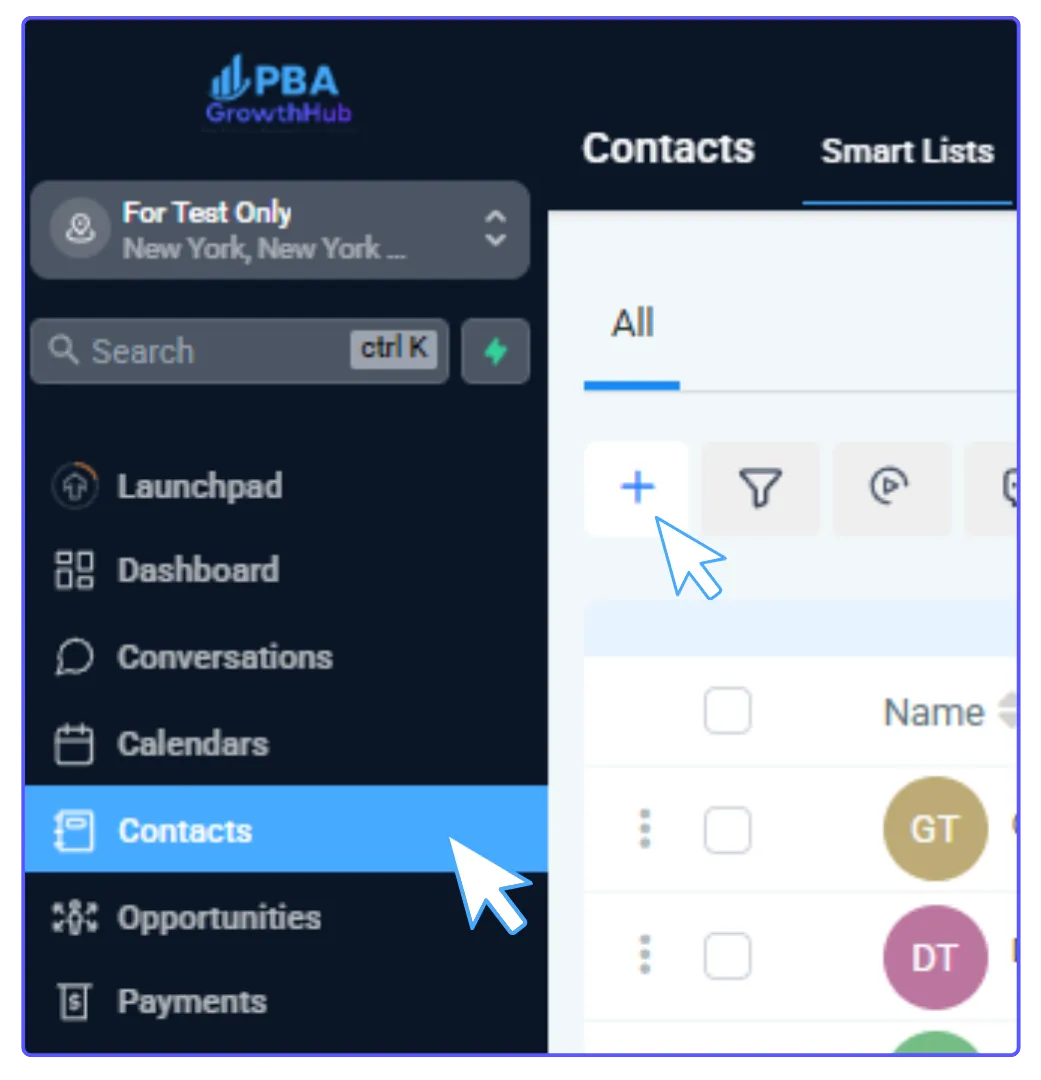
Go to Contacts.
Click the + icon.
Fill in the contact's details.
Click Save.
How to Import Contacts
You'll need a .csv file with your contact information.

Step 1: Prepare Your Contact List (.csv file)
The first row of your file should have clear headings like 'first name', 'last name', 'email', 'phone', 'address', 'tag', etc.
For contacts with multiple phone numbers, list them in an "additional phones" column.
Format phone numbers correctly. If a "+" sign is needed, start the entry with an apostrophe (e.g., '+19165551234').
Avoid using file upload or signature fields for import.
If you include 'DND' (Do Not Disturb) columns, contacts will be opted out of all communication channels unless specified otherwise.
Clean your list and remove any duplicate entries before importing to keep your data accurate.
Step 2: Import your contacts
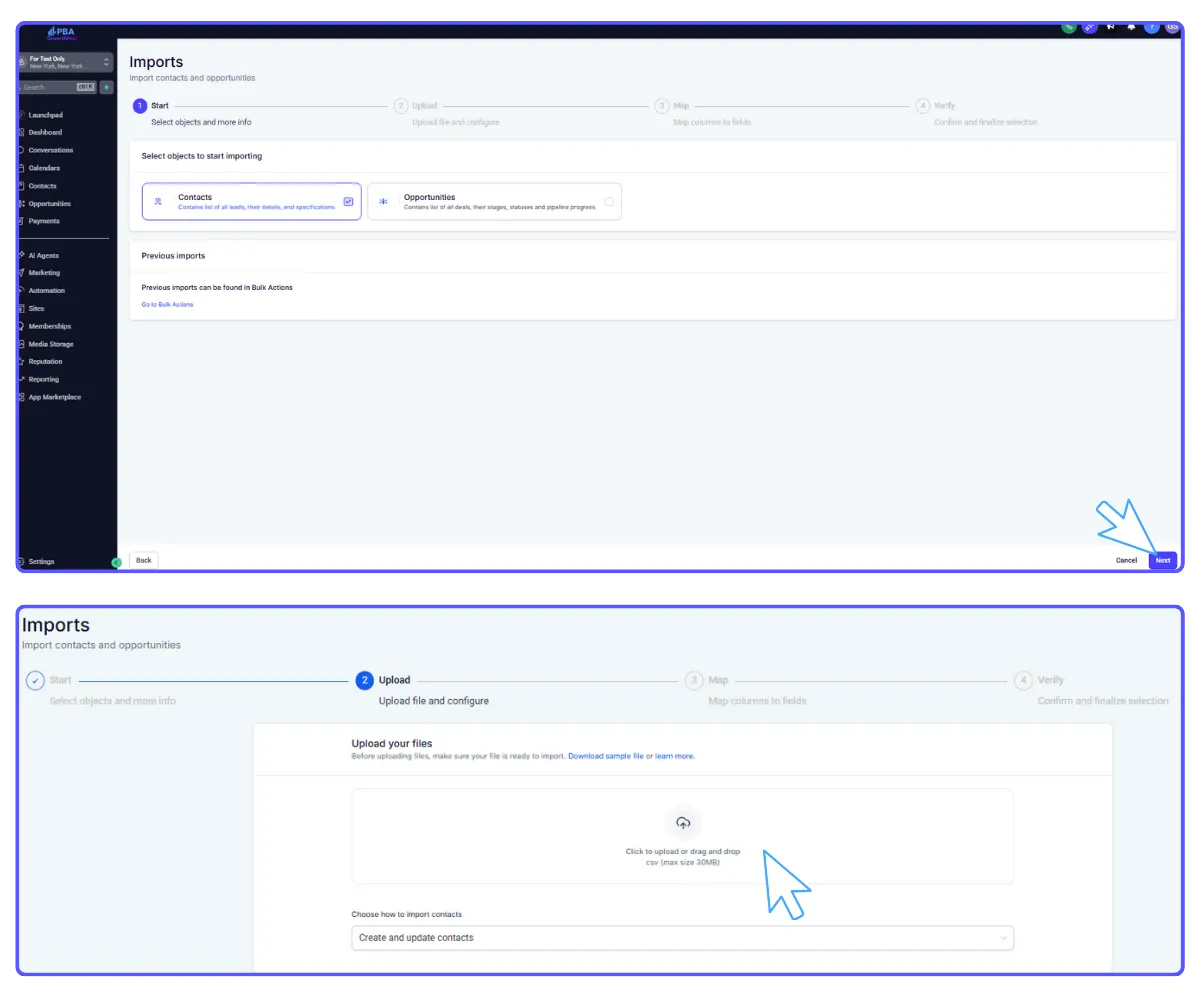
Click the import icon.
Upload your .csv file (or drag and drop it).
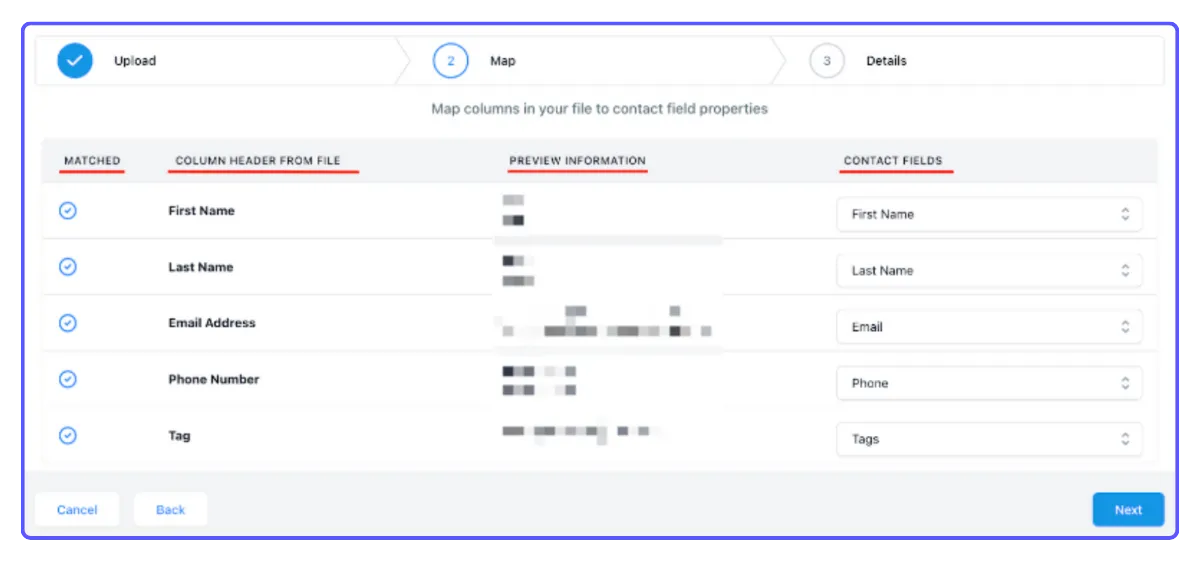
Map Fields: Match the columns from your .csv file to the corresponding fields in the system. A green check mark means a field is ready to import.
"Column Header From File" shows your .csv column name.
"Contact Fields" is the system's field. Common fields are often recognized automatically.
For multiple phone numbers, map them to "Additional Phones" and separate them in your file with commas, slashes, or semicolons.
Similarly, separate multiple emails and map them to "Additional Emails."
Move to the next tab (usually tab 3).
Name Your Import: Give your import a name or use the default date/time. You can also create a "Smart List" for these contacts.
Advanced Options: Here, you can decide how to handle duplicate contacts, add tags, link to a workflow, or validate emails (extra charges may apply).
Click 'Submit' to start the import.
Step 3: Validate the Import
Refresh your Contacts page.
Go to Contacts > Bulk Actions to check the status and details of your import.
Creating and Editing Pipelines & Opportunities
View & Manage Pipelines: Go to Opportunities > Pipelines. You'll see a list of your current pipelines and can use the edit or delete icons to make changes.

Adding a New Pipeline
Click the +Create new pipeline button.
In the pop-up, give your pipeline a name, add different stages (e.g., "New Lead," "Discovery," "Proposal"), and set their visibility for charts.
Use the arrows to change the order of your stages.
Click Save to confirm. Your new pipeline will now appear on the Pipelines page.
Opportunities: Managing Your Leads
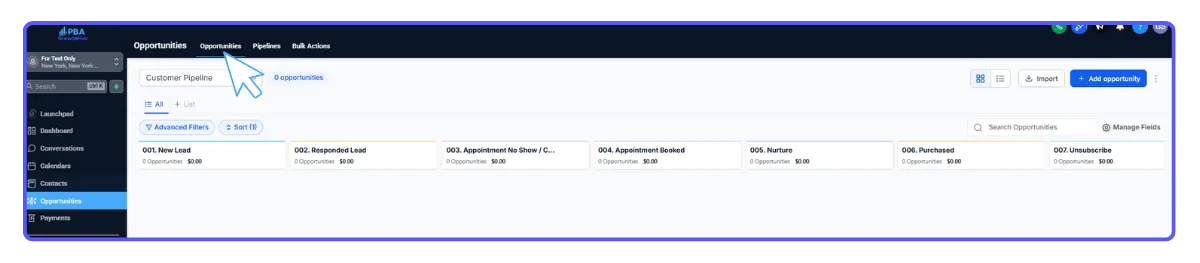
This section displays all your leads (opportunities) and shows which stage of your pipeline they are currently in.
Part 1: Filtering Opportunities
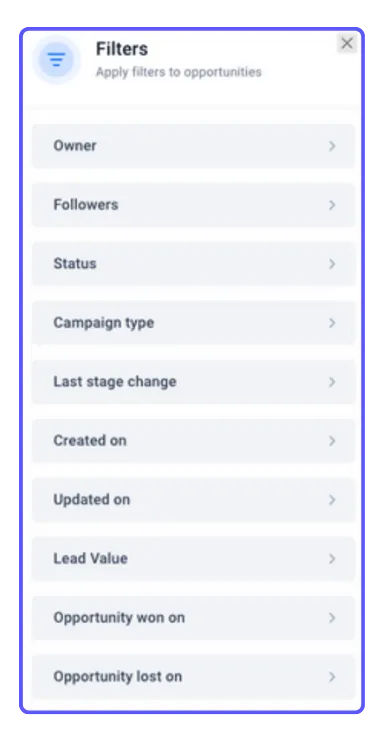
You can sort and search opportunities by criteria like owner, status, lead value, or creation date.
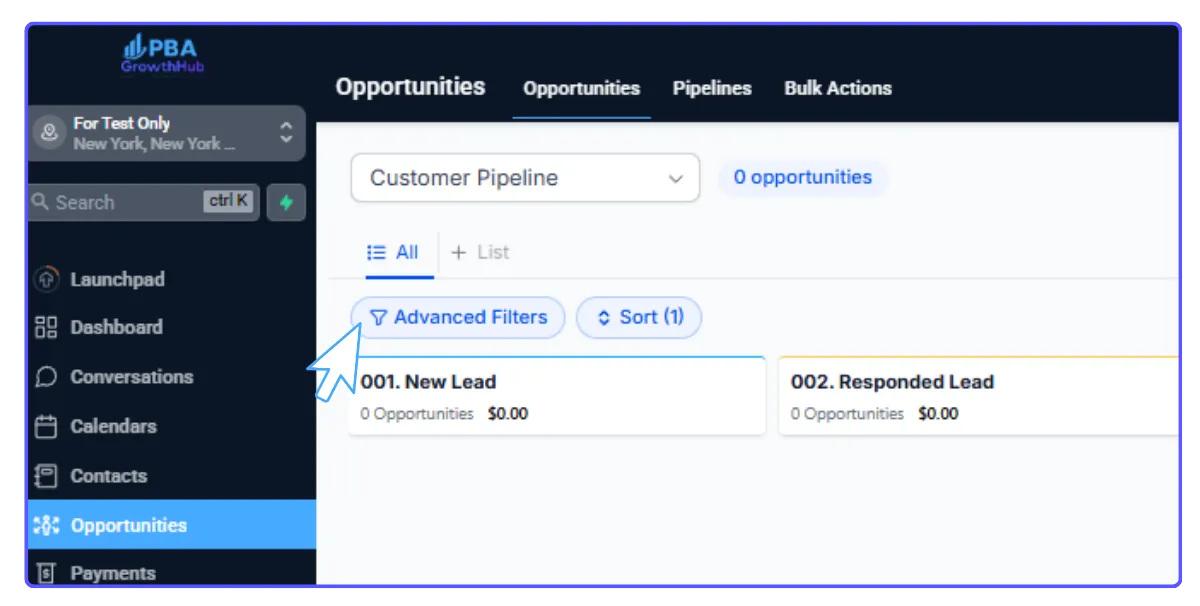
Select specific pipelines, owners, or campaigns, and combine filters using "AND" or "OR" logic.
Use the menu dots to export data and include extra details like tasks or notes.
Part 2: How to Add an Opportunity
Click on the "+ Opportunity" button next to the filters to create your new opportunity.

Part 3: Inside an Opportunity Card
Each opportunity card provides:
Contact Information: Name, email, phone, tags, and company.
Opportunity Details: Pipeline, current stage, status, lead value, owner, source, and creation details.
Other features include options to hide empty fields, book/update appointments, manage tasks and notes, and add custom fields.
Contacts, Pipelines & Opportunities
Manually Adding a Contact
Go to Contacts.
Click the + icon.
Fill in the contact's details.
Click Save.
How to Import Contacts
You'll need a .csv file with your contact information.
Step 1: Prepare Your Contact List (.csv file)
The first row of your file should have clear headings like 'first name', 'last name', 'email', 'phone', 'address', 'tag', etc.
For contacts with multiple phone numbers, list them in an "additional phones" column.
Format phone numbers correctly. If a "+" sign is needed, start the entry with an apostrophe (e.g., '+19165551234').
Avoid using file upload or signature fields for import.
If you include 'DND' (Do Not Disturb) columns, contacts will be opted out of all communication channels unless specified otherwise.
Clean your list and remove any duplicate entries before importing to keep your data accurate.
Step 2: Import your contacts
Click the import icon.
Upload your .csv file (or drag and drop it).
Map Fields: Match the columns from your .csv file to the corresponding fields in the system. A green check mark means a field is ready to import.
"Column Header From File" shows your .csv column name.
"Contact Fields" is the system's field. Common fields are often recognized automatically.
For multiple phone numbers, map them to "Additional Phones" and separate them in your file with commas, slashes, or semicolons.
Similarly, separate multiple emails and map them to "Additional Emails."
Move to the next tab (usually tab 3).
Name Your Import: Give your import a name or use the default date/time. You can also create a "Smart List" for these contacts.
Advanced Options: Here, you can decide how to handle duplicate contacts, add tags, link to a workflow, or validate emails (extra charges may apply).
Click 'Submit' to start the import.
Step 3: Validate the Import
Refresh your Contacts page.
Go to Contacts > Bulk Actions to check the status and details of your import.
Creating and Editing Pipelines & Opportunities
View & Manage Pipelines: Go to Opportunities > Pipelines. You'll see a list of your current pipelines and can use the edit or delete icons to make changes.
Adding a New Pipeline
Click the +Create new pipeline button.
In the pop-up, give your pipeline a name, add different stages (e.g., "New Lead," "Discovery," "Proposal"), and set their visibility for charts.
Use the arrows to change the order of your stages.
Click Save to confirm. Your new pipeline will now appear on the Pipelines page.
Opportunities: Managing Your Leads
This section displays all your leads (opportunities) and shows which stage of your pipeline they are currently in.
Part 1: Filtering Opportunities
You can sort and search opportunities by criteria like owner, status, lead value, or creation date.
Select specific pipelines, owners, or campaigns, and combine filters using "AND" or "OR" logic.
Use the menu dots to export data and include extra details like tasks or notes.
Part 2: How to Add an Opportunity
Click on the "+ Opportunity" button next to the filters to create your new opportunity.
Part 3: Inside an Opportunity Card
Each opportunity card provides:
Contact Information: Name, email, phone, tags, and company.
Opportunity Details: Pipeline, current stage, status, lead value, owner, source, and creation details.
Other features include options to hide empty fields, book/update appointments, manage tasks and notes, and add custom fields.