
Welcome to GrowhtHub Knowledge Base Hub
Welcome to GrowhtHub Knowledge Base Hub
How to Integrate and Use Paypal
Step 1: Set Up and Access Your PayPal Account
Begin by visiting developer.paypal.com to either create a new PayPal account or log in to an existing one. Upon successful login, proceed to your PayPal Dashboard.
From there, select the "My Apps & Credentials" section.
Make sure to opt for the Live app option.
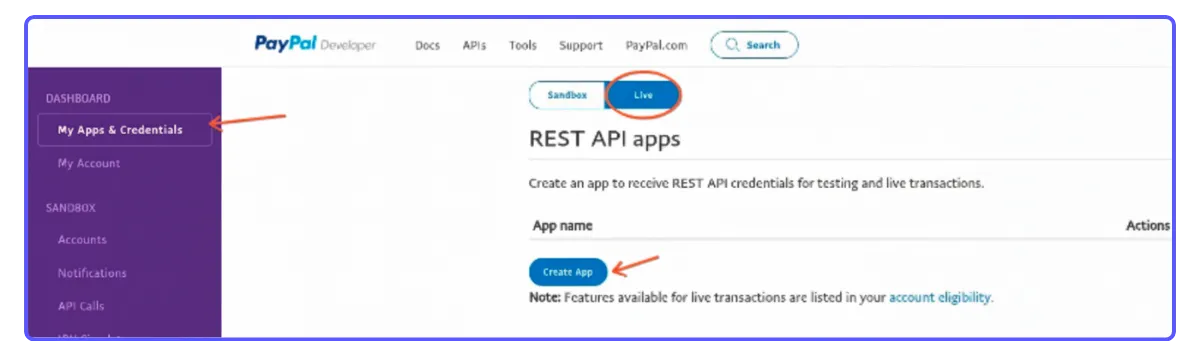
IMPORTANT NOTE: It's crucial to select the "Live app" option, not "Sandbox." The Sandbox environment and its corresponding credentials are exclusively for testing PayPal functionalities. To process actual payments, you must create a Live app and utilize its live credentials.
Next, click on the "Create App" button.
Provide a suitable name for your application.

After clicking "Create App," you will be presented with your unique Client ID and Secret ID. (The Secret ID might initially be concealed; you may need to click "Show" to reveal it.) Copy both the Client ID and Secret ID, as you will need to paste them into GrowthHub shortly to finalize the integration.
Step 2: Integrate Paypal to GrowthHub
Within GrowthHub, navigate to the "Payments" section, then select "Integrations."
Paste the Client ID and Secret ID you copied from your PayPal account in Step 1 into the designated fields.
Finally, click "Save" to complete and confirm the integration.

How to Integrate and Use Paypal
Step 1: Set Up and Access Your PayPal Account
Begin by visiting developer.paypal.com to either create a new PayPal account or log in to an existing one. Upon successful login, proceed to your PayPal Dashboard.
From there, select the "My Apps & Credentials" section.
Make sure to opt for the Live app option.
IMPORTANT NOTE: It's crucial to select the "Live app" option, not "Sandbox." The Sandbox environment and its corresponding credentials are exclusively for testing PayPal functionalities. To process actual payments, you must create a Live app and utilize its live credentials.
Next, click on the "Create App" button.
Provide a suitable name for your application.
After clicking "Create App," you will be presented with your unique Client ID and Secret ID. (The Secret ID might initially be concealed; you may need to click "Show" to reveal it.) Copy both the Client ID and Secret ID, as you will need to paste them into GrowthHub shortly to finalize the integration.
Step 2: Integrate Paypal to GrowthHub
Within GrowthHub, navigate to the "Payments" section, then select "Integrations."
Paste the Client ID and Secret ID you copied from your PayPal account in Step 1 into the designated fields.
Finally, click "Save" to complete and confirm the integration.