
Welcome to GrowhtHub Knowledge Base Hub
Welcome to GrowhtHub Knowledge Base Hub
Regulatory Bundle and Address Creation
What is a Regulatory Bundle?
Regulatory Bundles are compliance packages required by telecom carriers to confirm the identity and location of businesses or individuals who purchase phone numbers in certain countries. These bundles typically include documents such as government-issued IDs, business registration papers, or utility bills. Their main purpose is to ensure full compliance with local telecom regulations regarding phone number ownership.
Key Benefits of Regulatory Bundles
Submitting a Regulatory Bundle is an essential step when acquiring international phone numbers in compliance with regional telecom laws. This process helps ensure verified ownership, smooth operations, and reliable number performance for your agency or clients.
Compliance with Local Telecom Regulations
Fulfills legal requirements in regulated regions, allowing phone numbers to be activated and maintained without interruptions.
In-App Management
GrowthHub allows you to create, upload, and submit regulatory bundles directly within the platform — no need for external tools.
Faster Setup with Built-In Compliance Tools
GrowthHub’s built-in Compliance Tab simplifies the document upload and address validation process for seamless verification.
How to Create a Regulatory Bundle
GrowthHub users can create and manage both address and regulatory bundles directly through the Compliance Tab within each Sub-Account.
Step 1: Navigate to Regulatory Bundle/Address
Go to inside your GrowthHub Agency Dashboard.
Open the Settings menu on the left-hand side.
Select Phone Numbers from the menu.
At the top of the page, click the Regulatory Bundle/Address tab.
Step 2: Create a New Address Bundle
1. Click the + Create button located at the upper left corner.
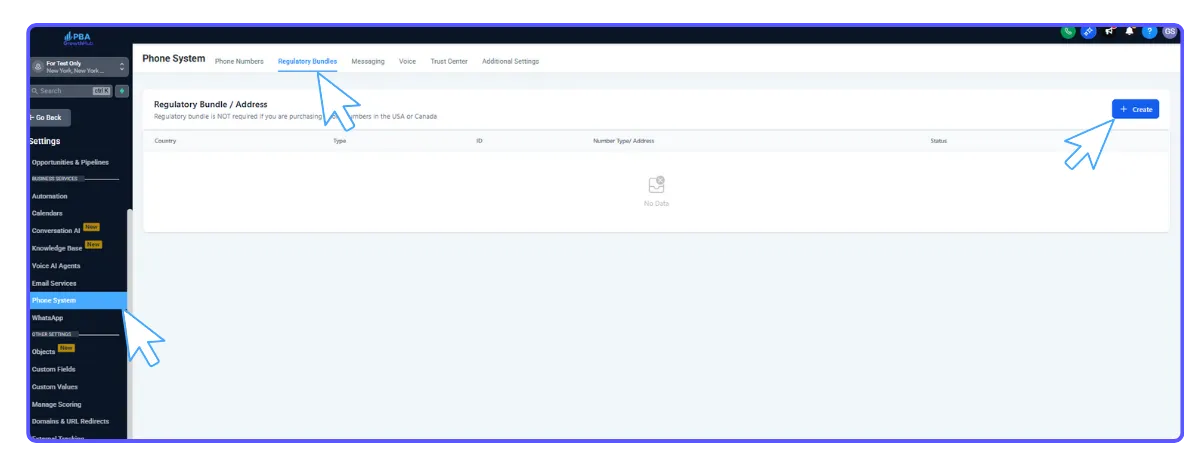
2. A popup will appear with two options: Address Bundle or Regulatory Bundle. Choose Address Bundle.

3. Enter the required business or personal details, including:
Friendly Name
Customer Name
Address Line 1
Address Line 2
City
State/Province
Postal Code
Country
4. Click Submit to save your Address Bundle.

Step 3: Create a Regulatory Bundle
1. Click the + Create button again at the top left.
2. Choose Regulatory Bundle from the popup options.
3. From the Select Country dropdown, choose the appropriate country.
4. Under Select Number Type, select the type of phone number you wish to purchase.
5. Fill in the required business or individual details.
6. Upload the necessary supporting documents.
⚠️ Note: Not all countries require documents, but many do. The specific requirements may vary depending on the region and the intended use of the number.
7. Once completed, submit the bundle for review.

Assigning a Regulatory Bundle to a Phone Number
After your Regulatory Bundle has been approved, it must be assigned to the phone number you’re purchasing. This verification step is required to activate regulated numbers and ensure compliance.
1. Navigate to Settings from your Sub-Account.
2. Click Phone Numbers.
3. Click the + Add Number button and select Add Phone Number from the dropdown.

4. Choose your desired Country and Number.
5. If the number requires a regulatory bundle, you’ll see Required under the “Address Requirement” column.
6. Click Proceed to Buy.
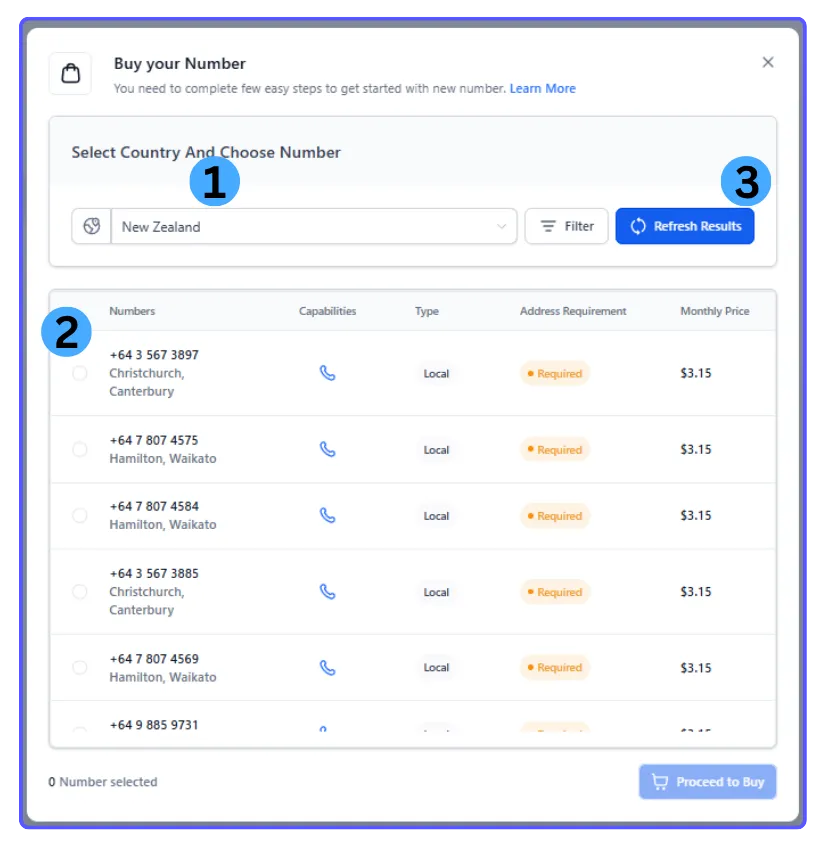

7. Use the dropdown to select and assign your approved Regulatory Bundle.
8. Click Proceed to Buy again to complete your purchase.

Regulatory Bundle and Address Creation
What is a Regulatory Bundle?
Regulatory Bundles are compliance packages required by telecom carriers to confirm the identity and location of businesses or individuals who purchase phone numbers in certain countries. These bundles typically include documents such as government-issued IDs, business registration papers, or utility bills. Their main purpose is to ensure full compliance with local telecom regulations regarding phone number ownership.
Key Benefits of Regulatory Bundles
Submitting a Regulatory Bundle is an essential step when acquiring international phone numbers in compliance with regional telecom laws. This process helps ensure verified ownership, smooth operations, and reliable number performance for your agency or clients.
Compliance with Local Telecom Regulations
Fulfills legal requirements in regulated regions, allowing phone numbers to be activated and maintained without interruptions.
In-App Management
GrowthHub allows you to create, upload, and submit regulatory bundles directly within the platform — no need for external tools.
Faster Setup with Built-In Compliance Tools
GrowthHub’s built-in Compliance Tab simplifies the document upload and address validation process for seamless verification.
How to Create a Regulatory Bundle
GrowthHub users can create and manage both address and regulatory bundles directly through the Compliance Tab within each Sub-Account.
Step 1: Navigate to Regulatory Bundle/Address
Go inside your GrowthHub Agency Dashboard.
Open the Settings menu on the left-hand side.
Select Phone Numbers from the menu.
At the top of the page, click the Regulatory Bundle/Address tab.
Step 2: Create a New Address Bundle
1. Click the + Create button located at the upper left corner.
2. A popup will appear with two options: Address Bundle or Regulatory Bundle. Choose Address Bundle.
3. Enter the required business or personal details, including:
Friendly Name
Customer Name
Address Line 1
Address Line 2
City
State/Province
Postal Code
Country
4. Click Submit to save your Address Bundle.
Step 3: Create a Regulatory Bundle
1. Click the + Create button again at the top left.
2. Choose Regulatory Bundle from the popup options.
3. From the Select Country dropdown, choose the appropriate country.
4. Under Select Number Type, select the type of phone number you wish to purchase.
5. Fill in the required business or individual details.
6. Upload the necessary supporting documents.
⚠️ Note: Not all countries require documents, but many do. The specific requirements may vary depending on the region and the intended use of the number.
7. Once completed, submit the bundle for review.
Assigning a Regulatory Bundle to a Phone Number
After your Regulatory Bundle has been approved, it must be assigned to the phone number you’re purchasing. This verification step is required to activate regulated numbers and ensure compliance.
1. Navigate to Settings from your Sub-Account.
2. Click Phone Numbers.
3. Click the + Add Number button and select Add Phone Number from the dropdown.
4. Choose your desired Country and Number.
5. If the number requires a regulatory bundle, you’ll see Required under the “Address Requirement” column.
6. Click Proceed to Buy.
7. Use the dropdown to select and assign your approved Regulatory Bundle.
8. Click Proceed to Buy again to complete your purchase.