
Welcome to GrowhtHub Knowledge Base Hub
Welcome to GrowhtHub Knowledge Base Hub
How to Pin a Dashboard
Follow these steps to pin a dashboard as a favorite.
Step 1: Go to the Dashboard Section
Log in to your GrowthHub account and navigate to the Dashboard area.
Step 2: Locate the Dashboard You Want to Pin
Find the dashboard you would like to save as a favorite.
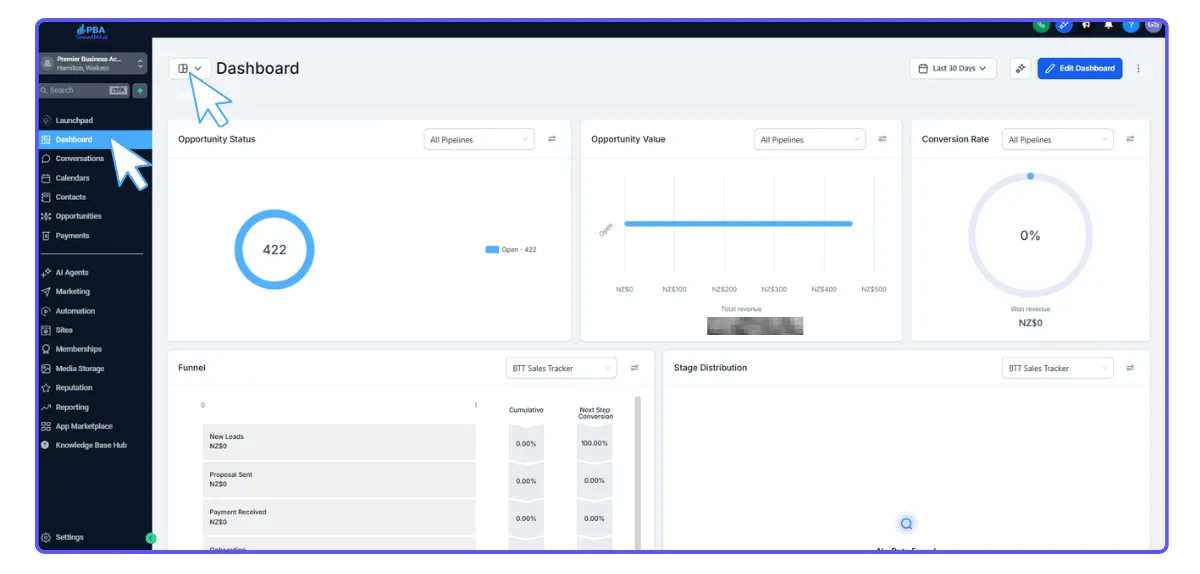
Step 3: Click the Pin Icon
Next to the dashboard name, click the Pin icon.
Step 4: Confirm the Dashboard is Pinned
Once pinned, the dashboard will appear in your Favorites section, allowing you to quickly access it whenever you open the dashboard area.
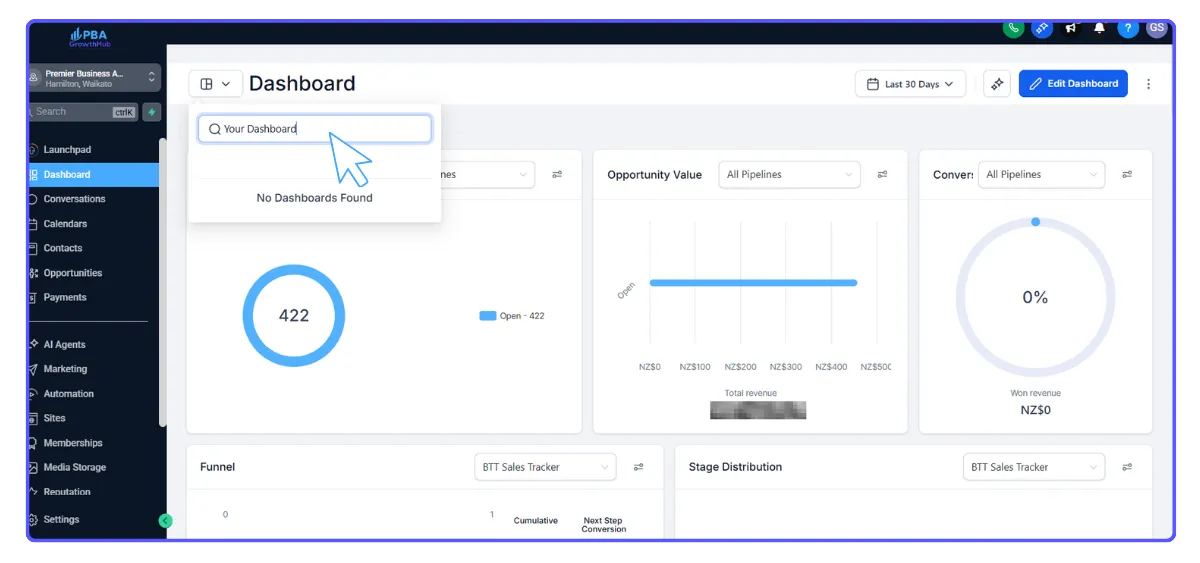
Managing Pinned Dashboards
You can manage your pinned dashboards at any time.
Unpin a dashboard if you no longer need quick access to it.
Pin multiple dashboards to keep several important reports easily accessible.
This makes it easier to navigate between different reports and monitor key business data inside GrowthHub.
✅ Tip:
Pin dashboards that track your most important metrics, such as leads, sales, or appointments, so you can review them immediately when you log in.
How to Pin a Dashboard
Follow these steps to pin a dashboard as a favorite.
Step 1: Go to the Dashboard Section
Log in to your GrowthHub account and navigate to the Dashboard area.
Step 2: Locate the Dashboard You Want to Pin
Find the dashboard you would like to save as a favorite.
Step 3: Click the Pin Icon
Next to the dashboard name, click the Pin icon.
Step 4: Confirm the Dashboard is Pinned
Once pinned, the dashboard will appear in your Favorites section, allowing you to quickly access it whenever you open the dashboard area.
Managing Pinned Dashboards
You can manage your pinned dashboards at any time.
Unpin a dashboard if you no longer need quick access to it.
Pin multiple dashboards to keep several important reports easily accessible.
This makes it easier to navigate between different reports and monitor key business data inside GrowthHub.
✅ Tip:
Pin dashboards that track your most important metrics, such as leads, sales, or appointments, so you can review them immediately when you log in.