
Welcome to GrowhtHub Knowledge Base Hub
Welcome to GrowhtHub Knowledge Base Hub
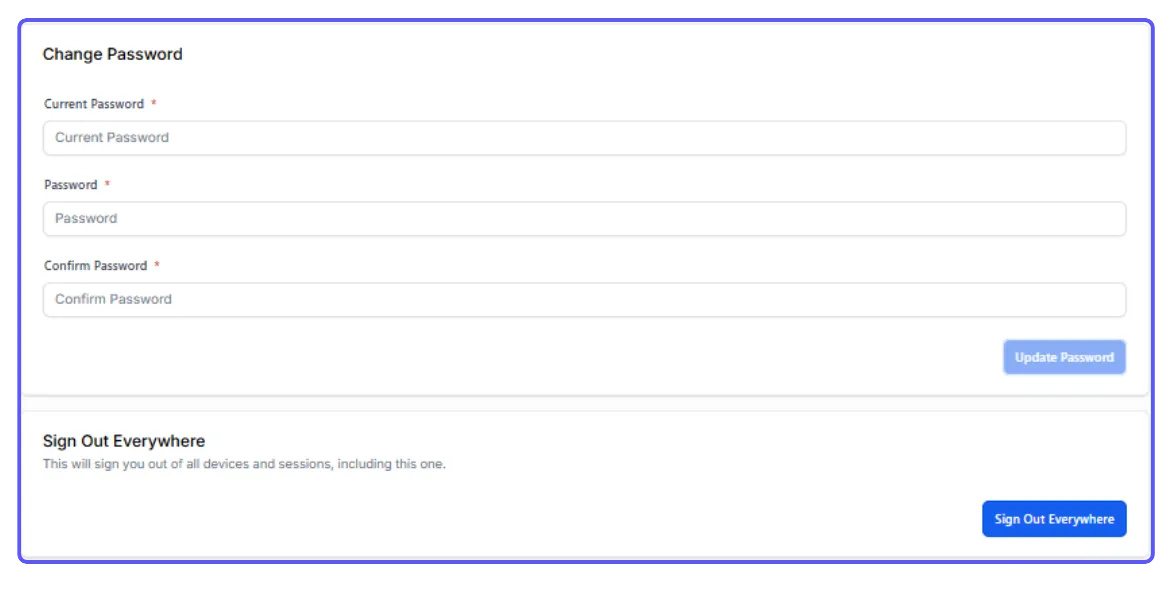
You can change your password here
Part 3: Authorized Representative
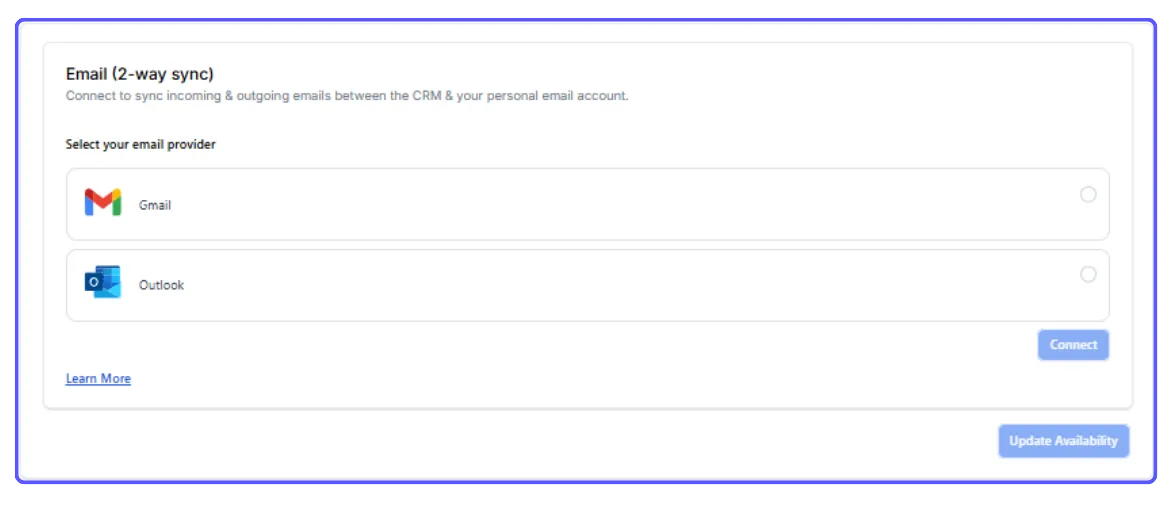
- You have the option to link your individual Gmail or Outlook email account, enabling the synchronization of both outgoing and incoming messages between GrowthHub and your chosen email service.
- The synchronization between GrowthHub and your email platform begins once an email conversation is started from within GrowthHub (i.e., the first message sent). Following this initial outbound message, all subsequent emails within that specific thread will automatically sync across both platforms.
- To proceed, select either Gmail or Outlook, and then click the "Connect" button.
- After choosing your desired account, you will be prompted to grant LeadConnector certain permissions for your account. Please ensure all requested permissions are allowed before clicking "Continue."
User Availability
Setting Your Schedule for Appointments
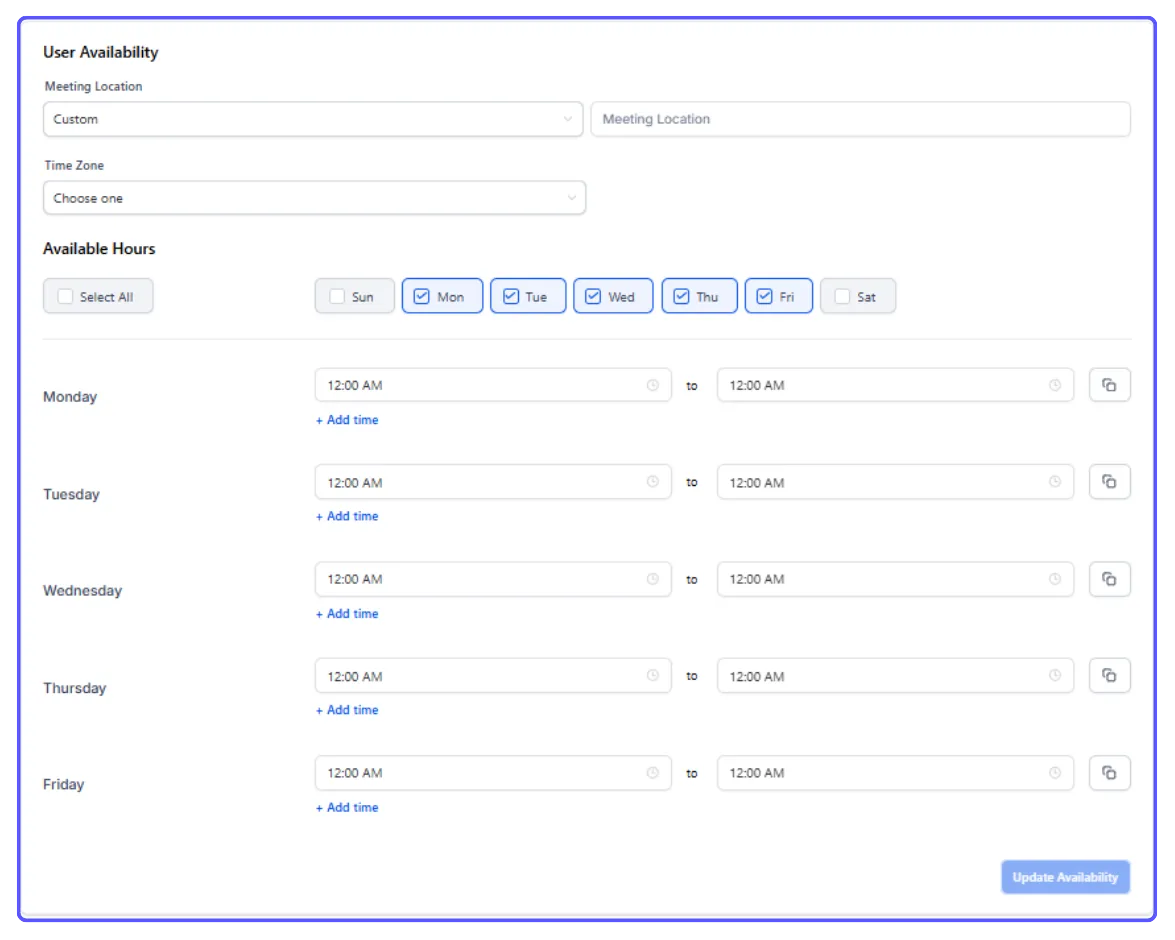
User Availability allows individuals to define their specific working hours and times when they can be booked for appointments. This ensures that clients can only schedule meetings when you are genuinely available, preventing conflicts and streamlining the booking process.
Here's how to set it up:
Understand User Availability: This feature lets you personally define when you are open for appointments, forming the basis for any calendars you manage.
Define Weekly Hours: Set your regular, recurring schedule for each day of the week. Specify your start and end times, and add any breaks (e.g., 9 AM-1 PM and 2 PM-5 PM).
Manage Date-Specific Exceptions: Override your regular schedule for specific dates. Mark entire days as unavailable (for holidays, vacations) or set custom hours for one-off changes.
Configure Time Zone: Ensure your correct time zone is selected to prevent scheduling errors.
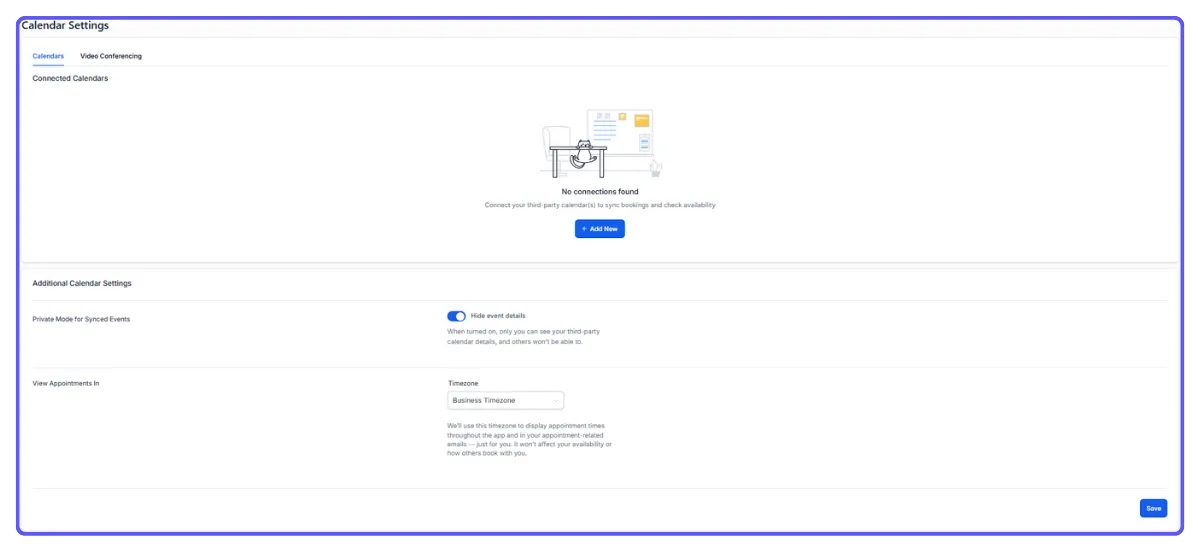
Sync External Calendars (Optional): Connect your personal Google or Outlook calendar to automatically block out times when you have existing appointments, preventing double bookings.
Save and Test: Always save your changes and test your calendar by booking a dummy appointment to confirm it's working as intended.
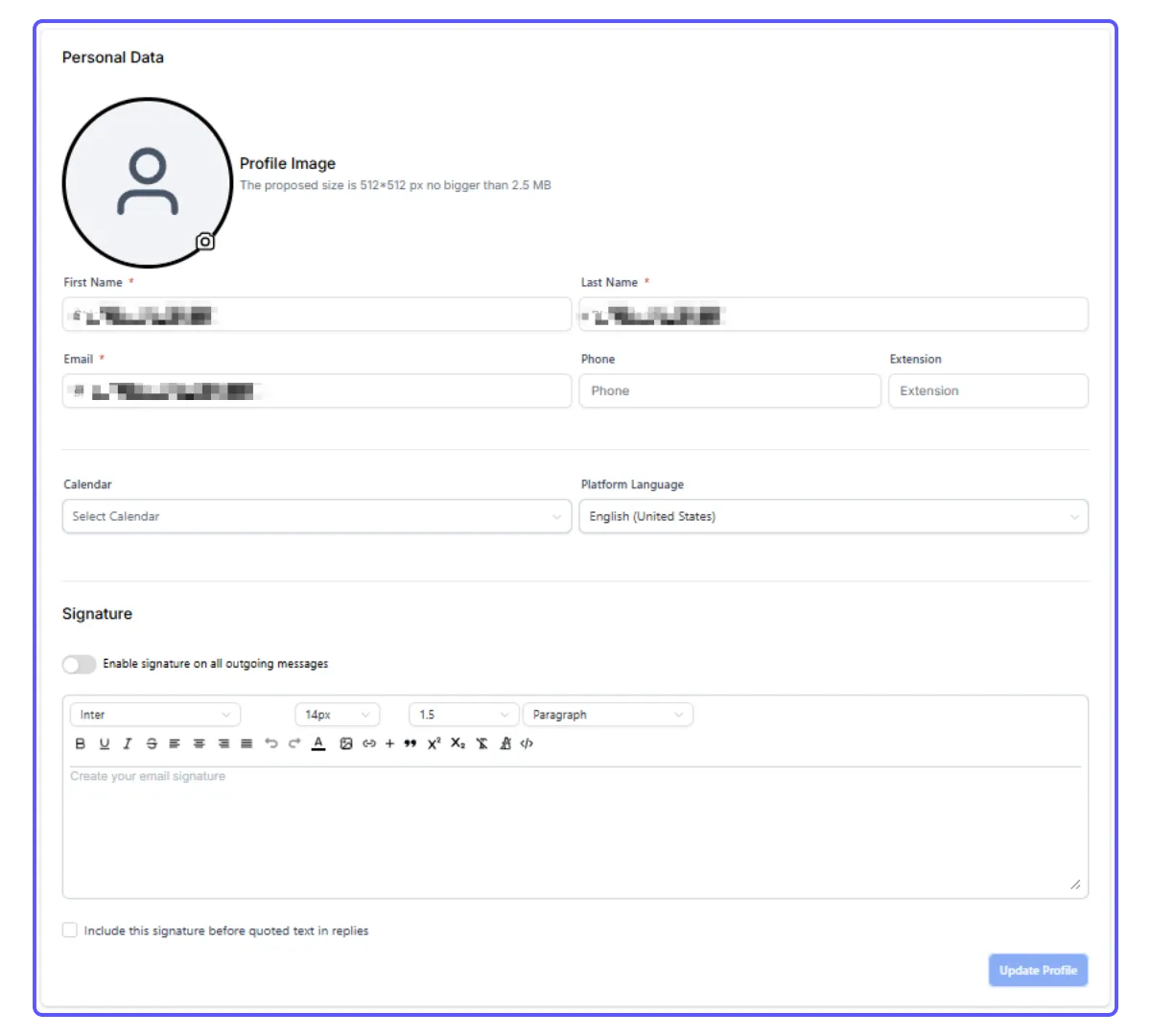
My Profile Setup Guide
You can change your password here
Part 3: Authorized Representative
- You have the option to link your individual Gmail or Outlook email account, enabling the synchronization of both outgoing and incoming messages between GrowthHub and your chosen email service.
- The synchronization between GrowthHub and your email platform begins once an email conversation is started from within GrowthHub (i.e., the first message sent). Following this initial outbound message, all subsequent emails within that specific thread will automatically sync across both platforms.
- To proceed, select either Gmail or Outlook, and then click the "Connect" button.
- After choosing your desired account, you will be prompted to grant LeadConnector certain permissions for your account. Please ensure all requested permissions are allowed before clicking "Continue."
User Availability
Setting Your Schedule for Appointments
User Availability allows individuals to define their specific working hours and times when they can be booked for appointments. This ensures that clients can only schedule meetings when you are genuinely available, preventing conflicts and streamlining the booking process.
Here's how to set it up:
Understand User Availability: This feature lets you personally define when you are open for appointments, forming the basis for any calendars you manage.
Define Weekly Hours: Set your regular, recurring schedule for each day of the week. Specify your start and end times, and add any breaks (e.g., 9 AM-1 PM and 2 PM-5 PM).
Manage Date-Specific Exceptions: Override your regular schedule for specific dates. Mark entire days as unavailable (for holidays, vacations) or set custom hours for one-off changes.
Configure Time Zone: Ensure your correct time zone is selected to prevent scheduling errors.
Sync External Calendars (Optional): Connect your personal Google or Outlook calendar to automatically block out times when you have existing appointments, preventing double bookings.
Save and Test: Always save your changes and test your calendar by booking a dummy appointment to confirm it's working as intended.