
Welcome to GrowhtHub Knowledge Base Hub
Welcome to GrowhtHub Knowledge Base Hub
How to Add Tag
Add a tag to a single contact.
Open GrowthHub and go to Contacts → Contacts (or All Contacts).
Search for the contact (name, email, phone) and click the contact to open their Contact Profile.
In the contact profile view find the Tags area (usually near the top or in the contact details pane).
Click the Add Tag (or + Tag) field.
Type the tag name you want (e.g. Paid-Customer, Lead — Hot) — GrowthHub will usually show existing tags you can select.
Press Enter (or click the suggested tag) to attach the tag to the contact.
Confirm the tag appears in the contact’s tag list. Optionally add multiple tags the same way.
(Optional) Save/Update the contact if GrowthHub requires a manual Save.
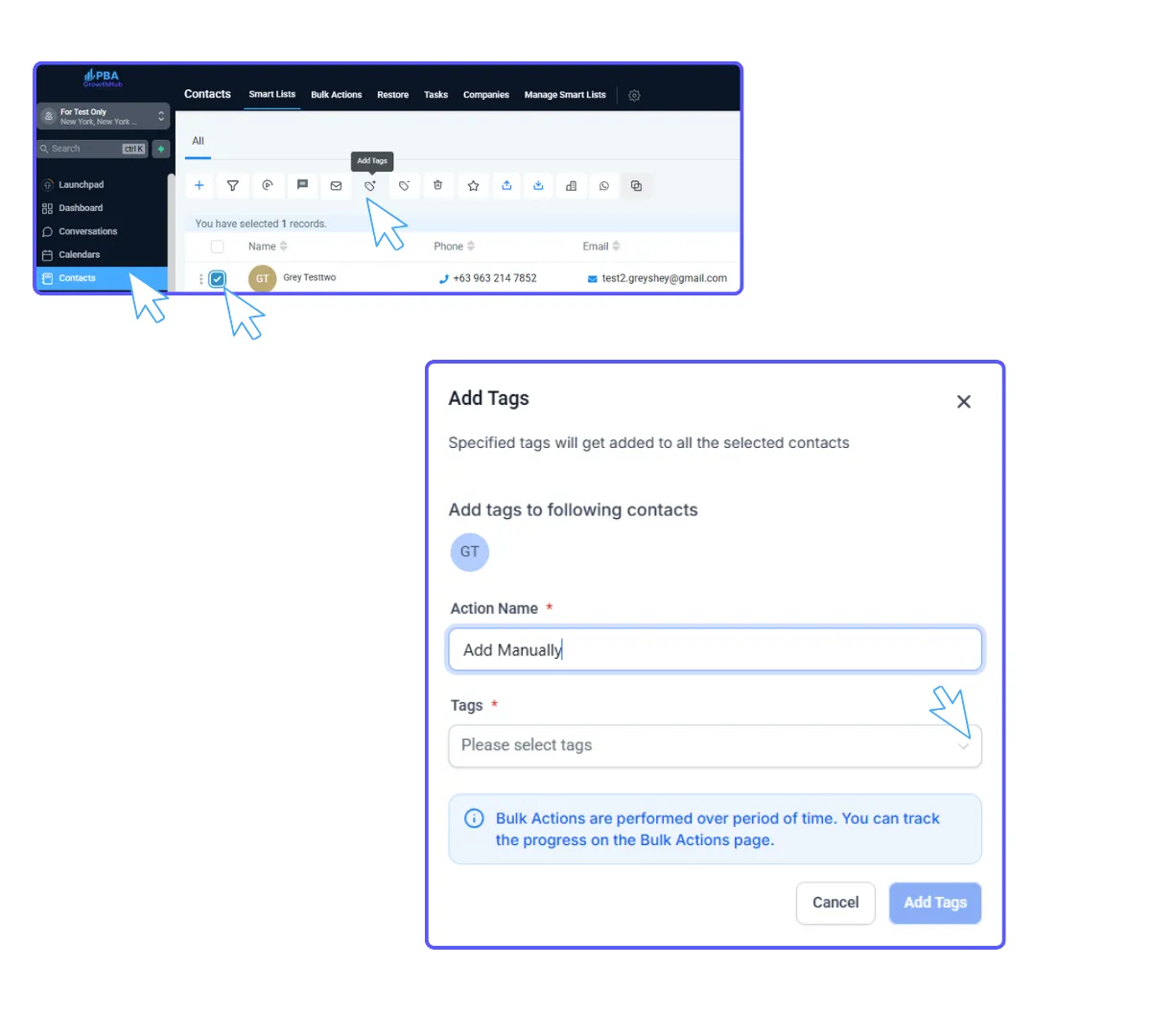
Remove a tag from a single contact
From the contact profile, hover/click the tag you want to remove.
Click the x or Remove option next to the tag.
Confirm removal if prompted.
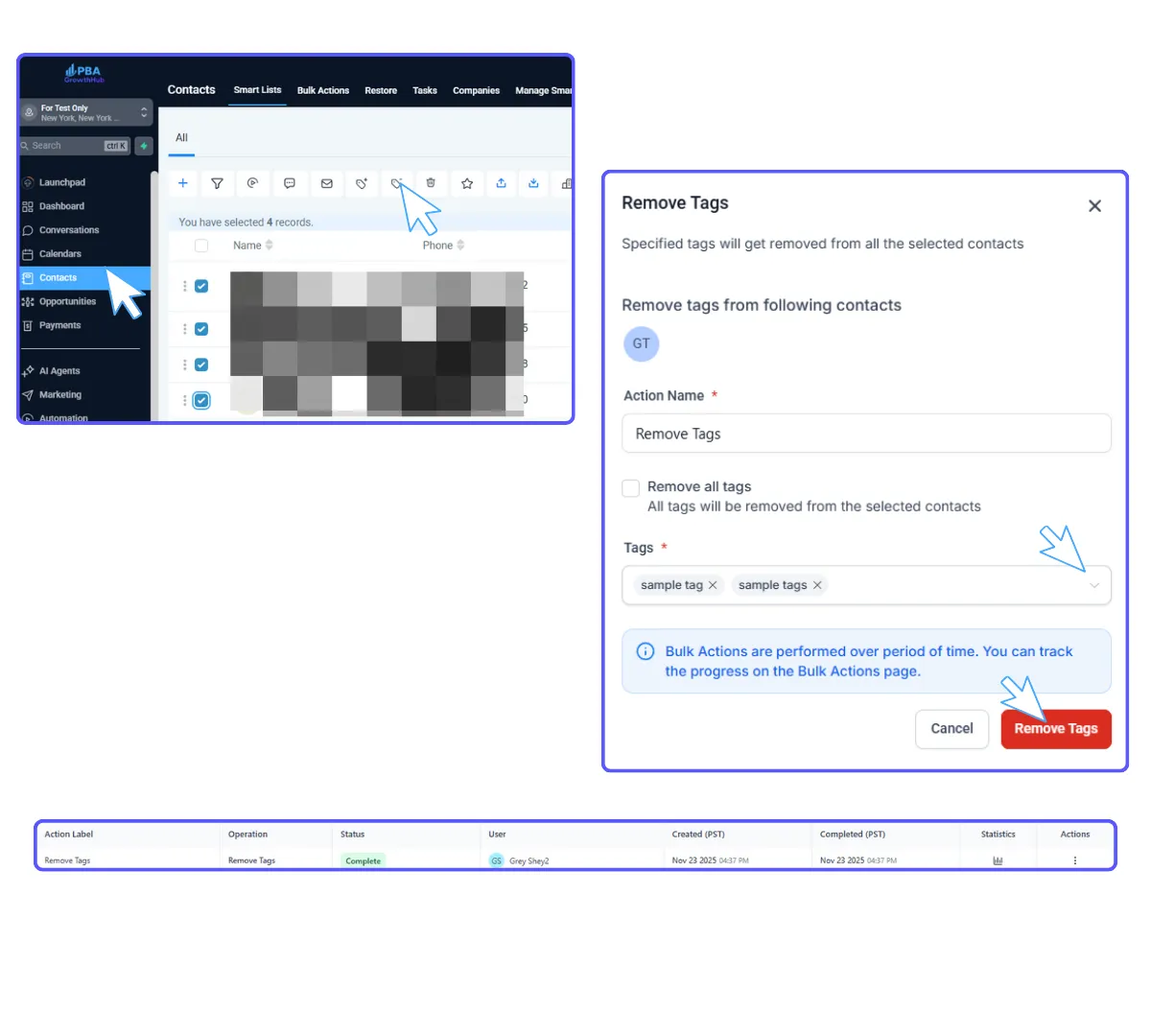
Bulk tagging — Method A: Multi-select + Bulk Action
GrowthHub users can create and manage both address and regulatory bundles directly through the Compliance Tab within each Sub-Account.
Step 1: Navigate to Regulatory Bundle/Address
Go to Contacts → Contacts (or All Contacts).
Use filters to narrow the list (e.g., by campaign, location, date added, custom field, etc.).
Check the checkbox for the first contact, then check others you want, or click Select All to select the whole filtered list.
Click Actions (or Bulk Actions) — look for an option like Add Tag, Add/Remove Tags, or Manage Tags.
Type the tag(s) you want to add and confirm (e.g., Newsletter-2025). Tags are usually added to every selected contact.
Wait for the bulk operation to complete; GrowthHub often shows a progress or success message.
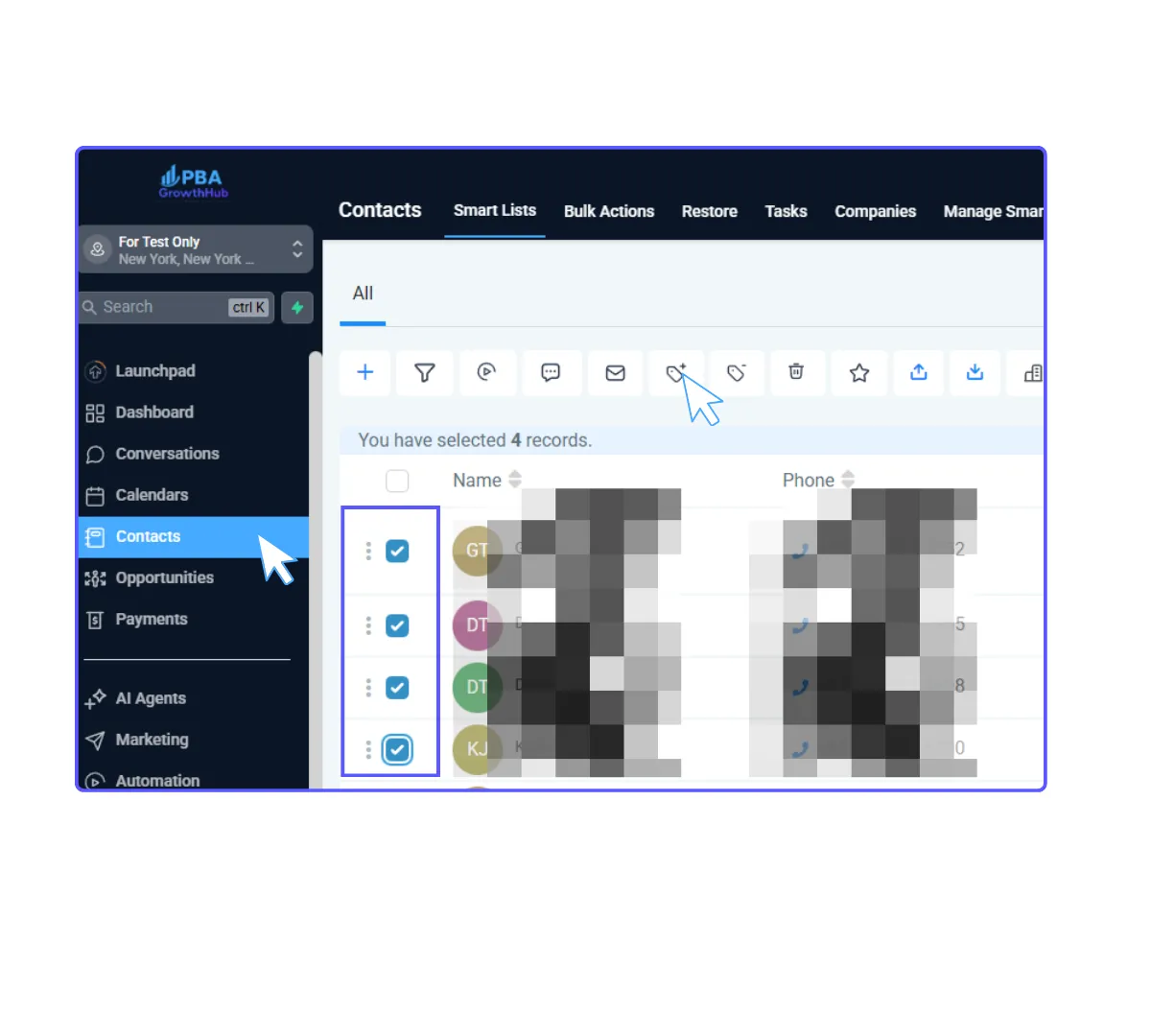
How to Add Tag
Add a tag to a single contact.
Open GrowthHub and go to Contacts → Contacts (or All Contacts).
Search for the contact (name, email, phone) and click the contact to open their Contact Profile.
In the contact profile view find the Tags area (usually near the top or in the contact details pane).
Click the Add Tag (or + Tag) field.
Type the tag name you want (e.g. Paid-Customer, Lead — Hot) — GrowthHub will usually show existing tags you can select.
Press Enter (or click the suggested tag) to attach the tag to the contact.
Confirm the tag appears in the contact’s tag list. Optionally add multiple tags the same way.
(Optional) Save/Update the contact if GrowthHub requires a manual Save.
Remove a tag from a single contact
From the contact profile, hover/click the tag you want to remove.
Click the x or Remove option next to the tag.
Confirm removal if prompted.
Bulk tagging — Method A: Multi-select + Bulk Action
GrowthHub users can create and manage both address and regulatory bundles directly through the Compliance Tab within each Sub-Account.
Step 1: Navigate to Regulatory Bundle/Address
Go to Contacts → Contacts (or All Contacts).
Use filters to narrow the list (e.g., by campaign, location, date added, custom field, etc.).
Check the checkbox for the first contact, then check others you want, or click Select All to select the whole filtered list.
Click Actions (or Bulk Actions) — look for an option like Add Tag, Add/Remove Tags, or Manage Tags.
Type the tag(s) you want to add and confirm (e.g., Newsletter-2025). Tags are usually added to every selected contact.
Wait for the bulk operation to complete; GrowthHub often shows a progress or success message.