
Welcome to GrowhtHub Knowledge Base Hub
Welcome to GrowhtHub Knowledge Base Hub
Wait Event Action
Wait is a unique type of workflow action designed to pause the contact at a specific step in the workflow until a desired condition is met.
In order to PUBLISH workflows, you will need to establish a workflow trigger and a workflow action. Without both, you will only be able to save the workflow, not publish it.
The wait event is a unique type of workflow action designed to pause the contact at a specific step in the workflow until a desired condition is met. This useful tool is handy when waiting for a tag, appointment, event, specific time, or contact reply.
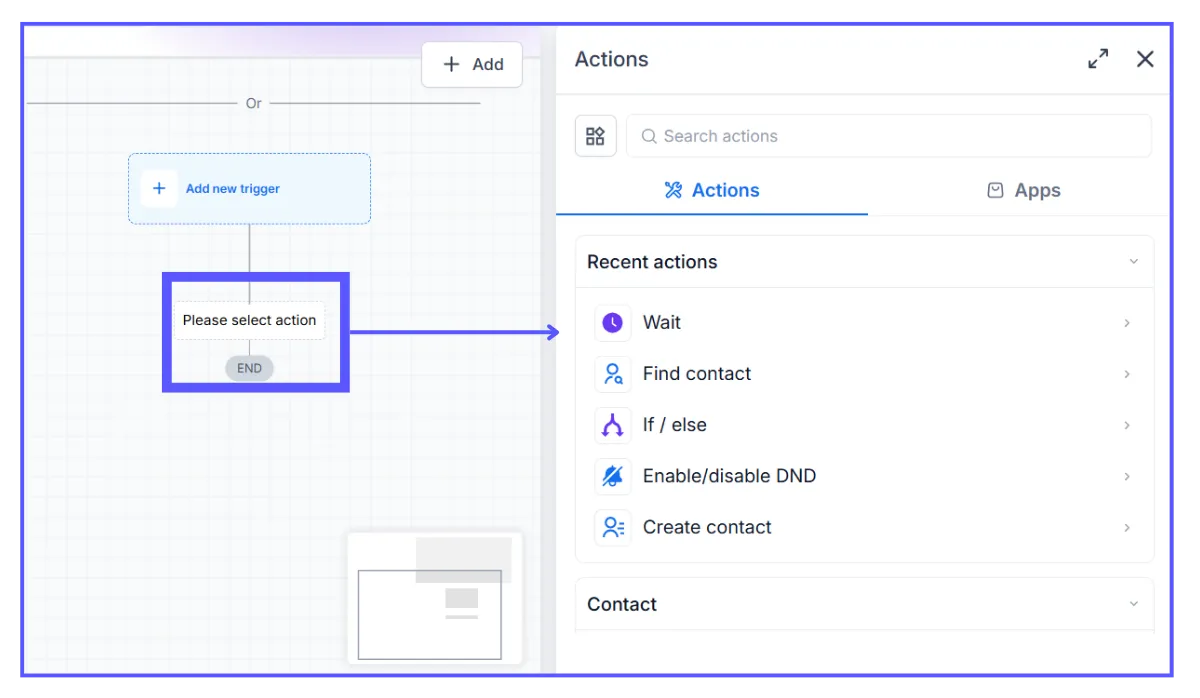
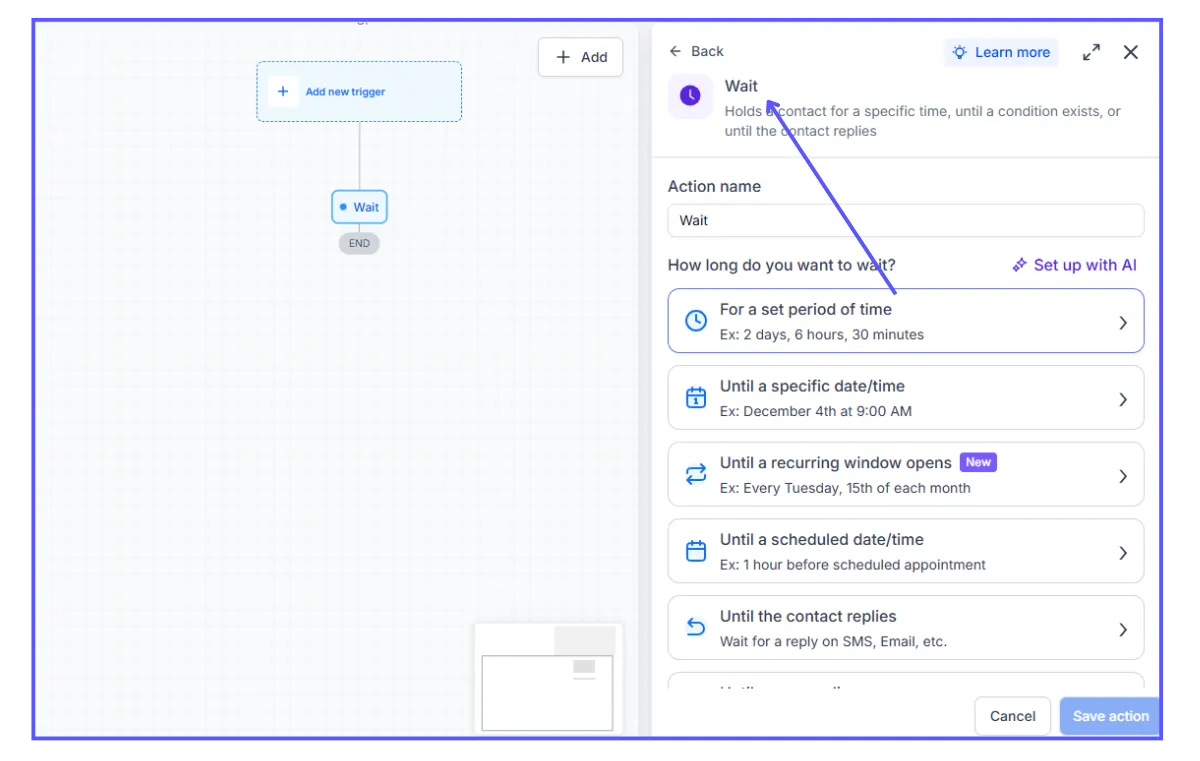
Time-based:
In a Time-Based Wait Event, a contact is held for a specific time until a condition is met or until the contact replies.
Time Delay
Wait
The Wait option allows users to delay the contact for a designated amount of minutes, hours, or days. Once the waiting time has passed, the Wait event opens up the path for the contact to move to the next designated step in the workflow.
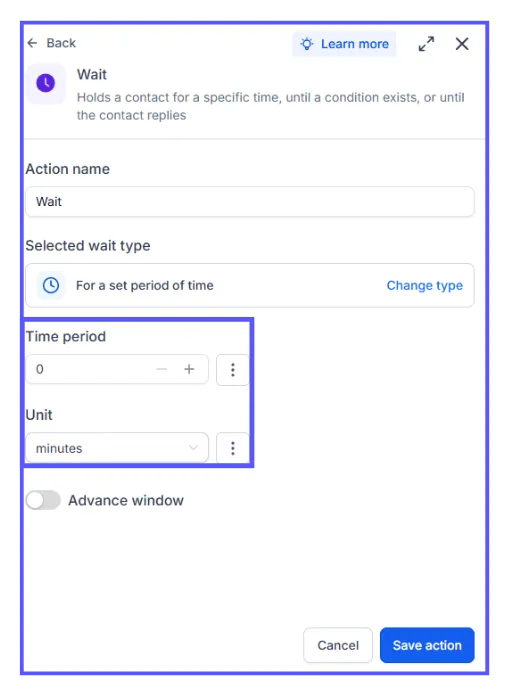
Advance Window Enabling the Advance Window option allows contacts to move to the next step only if their event falls within the exact year, month, days, and time frame that has been set.
Resume On: The Resume On option allows users to choose a specific day of the week.
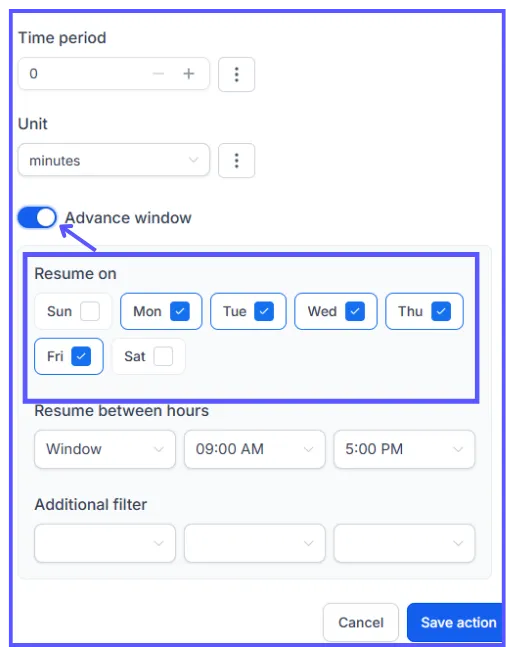
Resume Between Hours: The Resume Between Hours option enables users to select a specific time of the day.
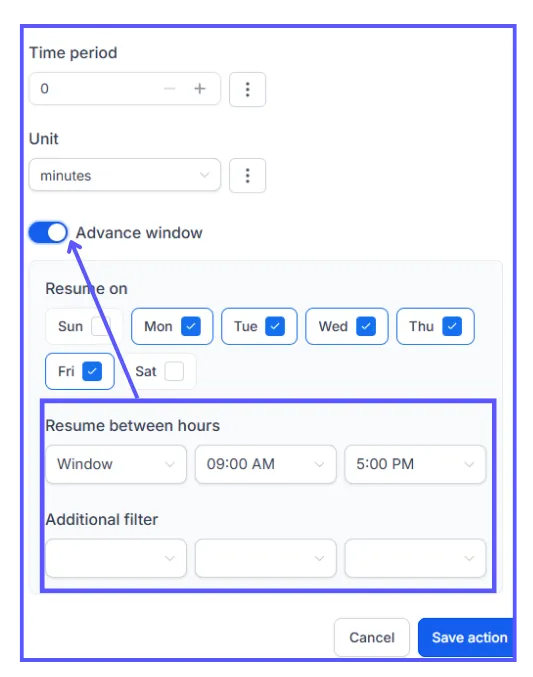
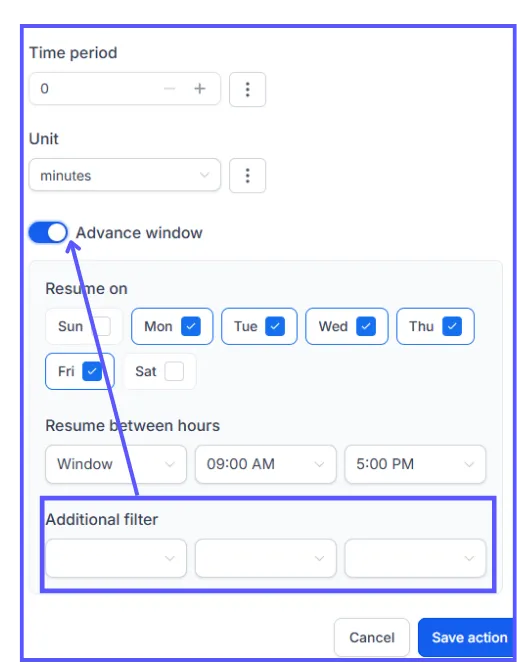
Additional Filter: The Additional Filter is used to carry out an event within the year or in months' time, making the filtering process more precise and detailed.
Event / Appointment time
The Event/Appointment time Wait Event delays the contact based on the specifics of an upcoming event or appointment.
For example, the contact is to reply to a Yes or No question in order to move to the next step, Or an appointment reminder is meant to be sent to a contact at a specific time. These contacts can be held at this step till then.
Wait - Until
The Wait - Until option allows you to choose whether to trigger the action before or after the event or appointment.
After: This can mostly be used when planning to send contacts a survey or get feedback from them after an appointment or event.
Before: This can be used to set a reminder for a meeting or an event minute, hours, days before the event.
Exact Time: Exact time is used when you would like certain workflow actions should happen at the time when a specific event occurs. So instead of using minutes or hours as a reference points such as 20 minutes before or 10 minutes after, this will be used to fire at the exact time of the event.
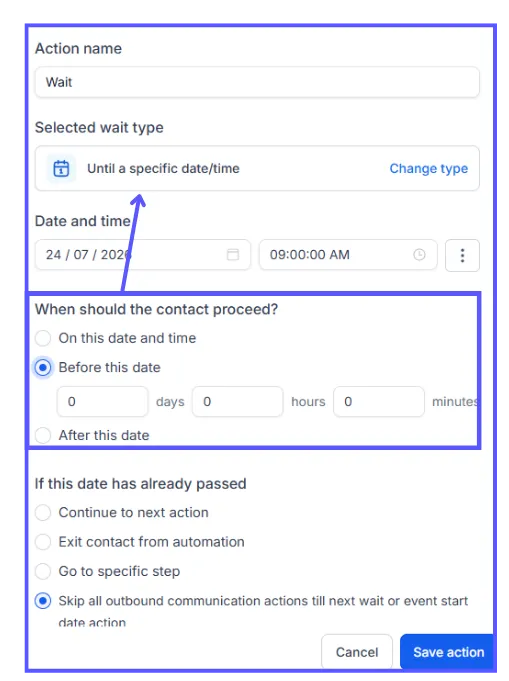
NOTE: If the timing of the Wait step is already in the past, you can decide how the contact should proceed, either by:
Moving to the next step, Or
Moving to the specific step Or
Skipping all outbound communication actions, till the next Wait or Event Start Date action. (Email, SMS, call, and voicemail)
Contact Reply
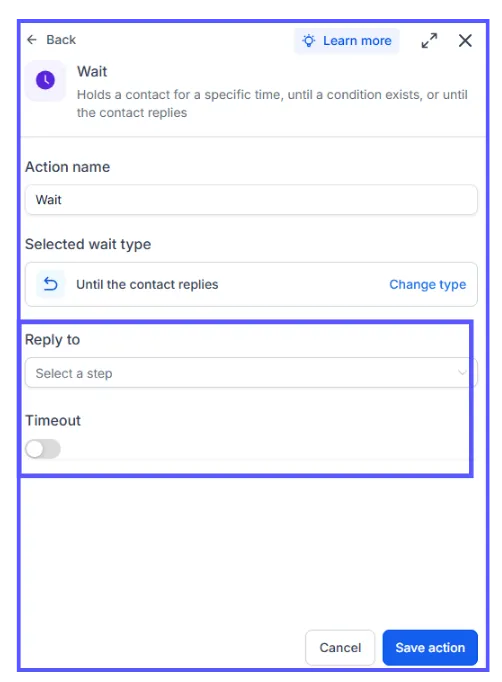
Reply To
The Contact Reply feature delays the contact's progression until they reply to a designated event.
Trigger Link Clicked
Select Trigger Link
If users want contacts to click on a set trigger link before proceeding to the next step, they can choose the Trigger Link Clicked option and select multiple trigger links that contacts must choose from.
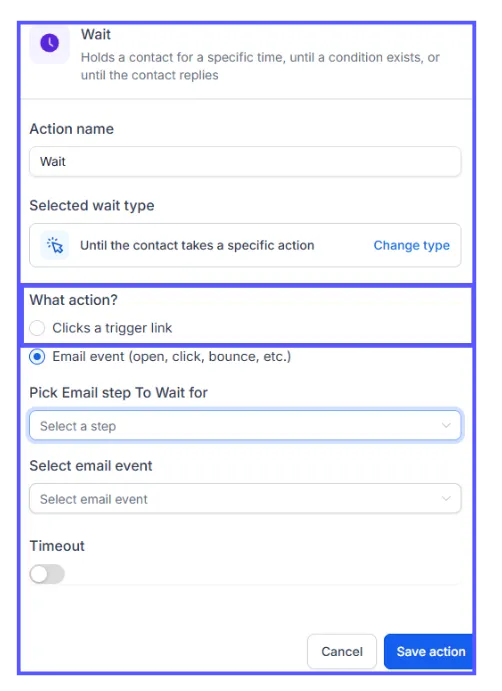
Email Event
Pick Email Step To Wait For
Here, you will select the email you want the contact to respond to.
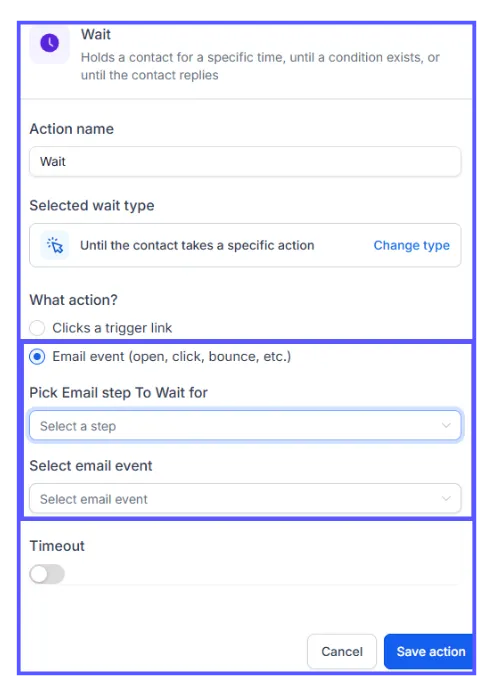
Select Email Events
These are the events you want to be triggered if the contact response falls within it. you can select multiple events you wish to be triggered.
Timeout
Enabling the Timeout option creates a duration within which the system expects a response from a contact. This duration can be set in minutes, hours, or days.
Wait Event Action
Wait is a unique type of workflow action designed to pause the contact at a specific step in the workflow until a desired condition is met.

In order to PUBLISH workflows, you will need to establish a workflow trigger and a workflow action. Without both, you will only be able to save the workflow, not publish it.
The wait event is a unique type of workflow action designed to pause the contact at a specific step in the workflow until a desired condition is met. This useful tool is handy when waiting for a tag, appointment, event, specific time, or contact reply.
Time-based:
In a Time-Based Wait Event, a contact is held for a specific time until a condition is met or until the contact replies.
Time Delay
Wait
The Wait option allows users to delay the contact for a designated amount of minutes, hours, or days. Once the waiting time has passed, the Wait event opens up the path for the contact to move to the next designated step in the workflow.
Advance Window Enabling the Advance Window option allows contacts to move to the next step only if their event falls within the exact year, month, days, and time frame that has been set.
Resume On: The Resume On option allows users to choose a specific day of the week.
Resume Between Hours: The Resume Between Hours option enables users to select a specific time of the day.
Additional Filter: The Additional Filter is used to carry out an event within the year or in months' time, making the filtering process more precise and detailed.
Event / Appointment time
The Event/Appointment time Wait Event delays the contact based on the specifics of an upcoming event or appointment.
For example, the contact is to reply to a Yes or No question in order to move to the next step, Or an appointment reminder is meant to be sent to a contact at a specific time. These contacts can be held at this step till then.
Wait - Until
The Wait - Until option allows you to choose whether to trigger the action before or after the event or appointment.
After: This can mostly be used when planning to send contacts a survey or get feedback from them after an appointment or event.
Before: This can be used to set a reminder for a meeting or an event minute, hours, days before the event.
Exact Time: Exact time is used when you would like certain workflow actions should happen at the time when a specific event occurs. So instead of using minutes or hours as a reference points such as 20 minutes before or 10 minutes after, this will be used to fire at the exact time of the event.
NOTE: If the timing of the Wait step is already in the past, you can decide how the contact should proceed, either by:
Moving to the next step, Or
Moving to the specific step Or
Skipping all outbound communication actions, till the next Wait or Event Start Date action. (Email, SMS, call, and voicemail)
Contact Reply
Reply To
The Contact Reply feature delays the contact's progression until they reply to a designated event.
Trigger Link Clicked
Select Trigger Link
If users want contacts to click on a set trigger link before proceeding to the next step, they can choose the Trigger Link Clicked option and select multiple trigger links that contacts must choose from.
Email Event
Pick Email Step To Wait For
Here, you will select the email you want the contact to respond to.
Select Email Events
These are the events you want to be triggered if the contact response falls within it. you can select multiple events you wish to be triggered.