
Welcome to GrowhtHub Knowledge Base Hub
Welcome to GrowhtHub Knowledge Base Hub
Using Notes and Tasks
Rich Text Formatting for Notes & Task Descriptions
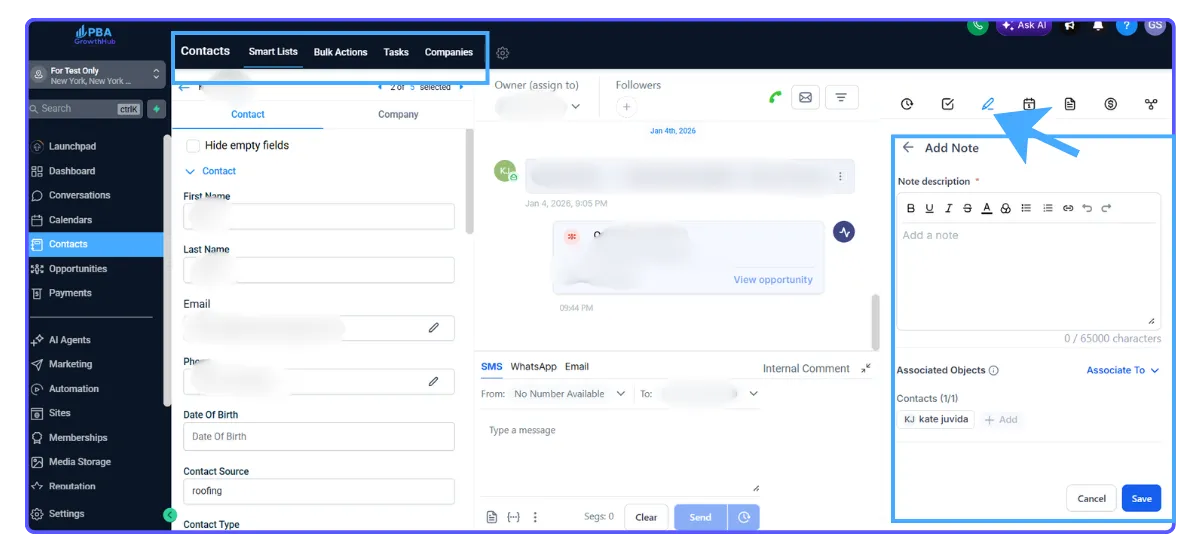
Formatting Toolbar
The toolbar provides quick access to the most-used formatting controls for efficient note-taking.
Available formatting tools:
Bold, italics, underline, strikethrough
Bulleted and numbered lists
Hyperlinks (insert/edit)
Undo / Redo
Lists & Structure
Lists make action items and meeting notes easier to read and maintain over time.
Use bulleted lists for ideas, talking points, and general notes.
Use numbered lists for steps, follow-ups, or ordered tasks.
Hyperlinks
Add links to external assets (documents, drive folders, tickets) so teams can jump directly to details from within your GrowthHub CRM.
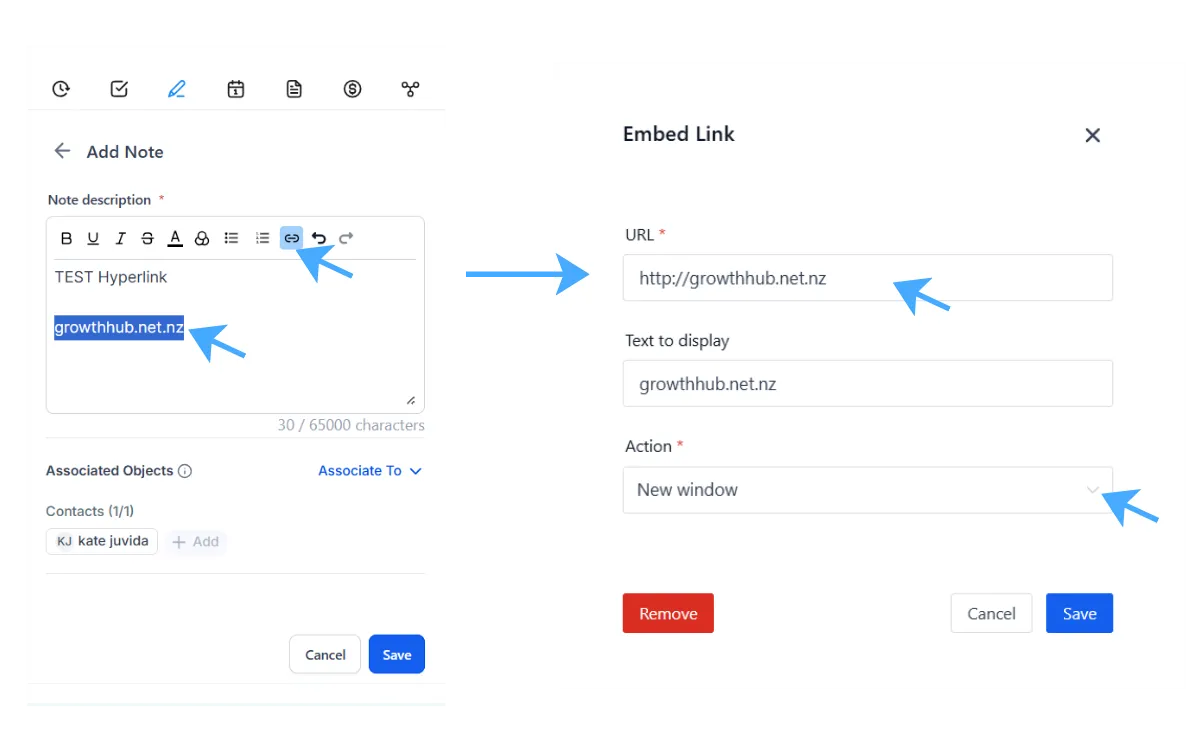
To insert or edit a link in a note or task description:
Select the text you want to hyperlink.
Click the Link icon in the toolbar.
Paste the URL and confirm.
Save your note/task. The link will render as clickable text wherever the note or task appears.
Rendering Across the CRM
Notes and task descriptions appear in multiple places. Rich Text ensures the same content stays readable wherever it’s shown.
Rich Text formatting renders consistently in these areas:
Contacts
Opportunities
Companies
Conversations
Calendars
Limitations & Expectations
Setting clear expectations prevents confusion and helps your team adopt Rich Text confidently.
The current release focuses on lightweight formatting.
Not supported:
Images
Tables
Headings
Text colors
Text alignment
Code blocks
Checkbox-style task lists
Pasting content:
Pasting preserves basic formatting only (emphasis, lists, links). Complex layouts and media are not included.
Public API:
No changes were introduced by this feature.
How To Use Rich Text for Notes & Task Descriptions in GrowthHub
Rich Text for Notes & Task Descriptions is available across GrowthHub, giving your team access to the editor and ensuring consistent formatting wherever notes and tasks appear.
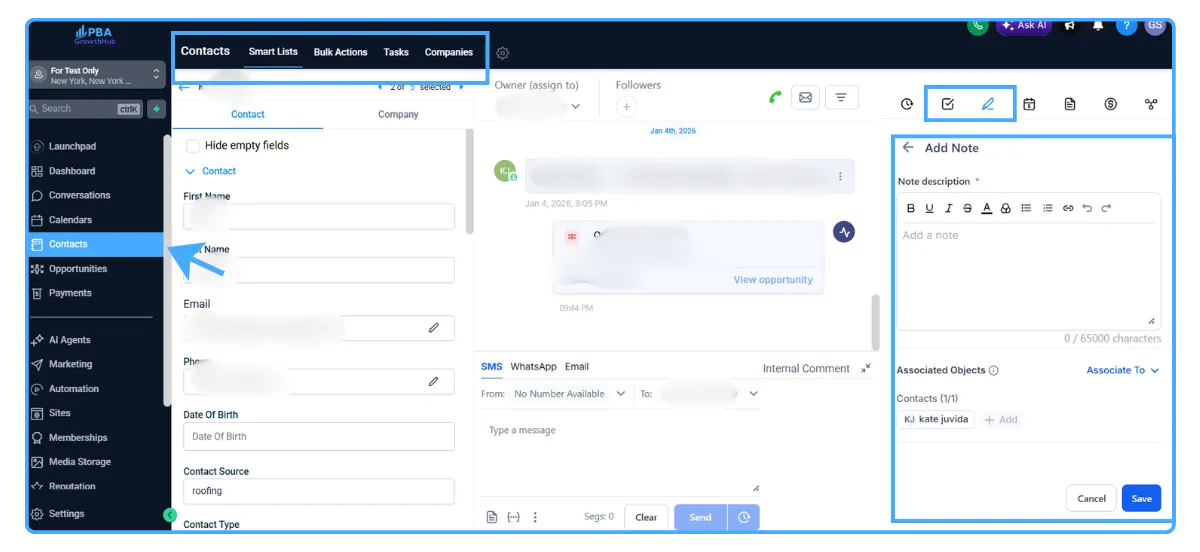
Steps:
Open any note or task (new or existing).
Example: Open a note or task from Contacts → Open Existing/New Contact in a sub-account.Click in the Note Description field.
Use the toolbar to apply formatting, insert links, or create lists.
Save to apply changes.
Frequently Asked Questions
Q: Does Rich Text change how notes or tasks are stored or exported?
Rich Text focuses on on-screen readability. When exporting or printing, content may be simplified, so review exports to confirm the appearance you need.
Q: Can I add images, tables, or headings to Tasks/Notes?
No. Notes and task descriptions support lightweight formatting only: emphasis, lists, links, undo/redo, and basic paste formatting.
Q: Are hyperlink clicks tracked?
Hyperlinks are provided for quick navigation. This feature does not include link tracking.
Q: Will formatting appear on mobile?
Formatting is designed to be readable across the platform. If you don’t see a toolbar on mobile, use the desktop/web app to edit while viewing remains intact.
Q: Is there an API change?
No. This release does not add or modify public API endpoints.
Q: Do internal comments in Conversations use the same editor as Notes?
Internal comments are separate from Notes. Rich Text for Notes & Task Descriptions improves note/task editing; internal comments may have different capabilities.
Q: Are text colors or alignment available?
No. The feature focuses on essential formatting for clarity and consistency.

Using Notes and Tasks
Rich Text Formatting for Notes & Task Descriptions
Formatting Toolbar
The toolbar provides quick access to the most-used formatting controls for efficient note-taking.
Available formatting tools:
Bold, italics, underline, strikethrough
Bulleted and numbered lists
Hyperlinks (insert/edit)
Undo / Redo
Lists & Structure
Lists make action items and meeting notes easier to read and maintain over time.
Use bulleted lists for ideas, talking points, and general notes.
Use numbered lists for steps, follow-ups, or ordered tasks.
Hyperlinks
Add links to external assets (documents, drive folders, tickets) so teams can jump directly to details from within your GrowthHub CRM.
To insert or edit a link in a note or task description:
Select the text you want to hyperlink.
Click the Link icon in the toolbar.
Paste the URL and confirm.
Save your note/task. The link will render as clickable text wherever the note or task appears.
Rendering Across the CRM
Notes and task descriptions appear in multiple places. Rich Text ensures the same content stays readable wherever it’s shown.
Rich Text formatting renders consistently in these areas:
Contacts
Opportunities
Companies
Conversations
Calendars
Limitations & Expectations
Setting clear expectations prevents confusion and helps your team adopt Rich Text confidently.
The current release focuses on lightweight formatting.
Not supported:
Images
Tables
Headings
Text colors
Text alignment
Code blocks
Checkbox-style task lists
Pasting content:
Pasting preserves basic formatting only (emphasis, lists, links). Complex layouts and media are not included.
Public API:
No changes were introduced by this feature.
How To Use Rich Text for Notes & Task Descriptions in GrowthHub
Rich Text for Notes & Task Descriptions is available across GrowthHub, giving your team access to the editor and ensuring consistent formatting wherever notes and tasks appear.
Steps:
Open any note or task (new or existing).
Example: Open a note or task from Contacts → Open Existing/New Contact in a sub-account.Click in the Note Description field.
Use the toolbar to apply formatting, insert links, or create lists.
Save to apply changes.
Frequently Asked Questions
Q: Does Rich Text change how notes or tasks are stored or exported?
Rich Text focuses on on-screen readability. When exporting or printing, content may be simplified, so review exports to confirm the appearance you need.
Q: Can I add images, tables, or headings to Tasks/Notes?
No. Notes and task descriptions support lightweight formatting only: emphasis, lists, links, undo/redo, and basic paste formatting.
Q: Are hyperlink clicks tracked?
Hyperlinks are provided for quick navigation. This feature does not include link tracking.
Q: Will formatting appear on mobile?
Formatting is designed to be readable across the platform. If you don’t see a toolbar on mobile, use the desktop/web app to edit while viewing remains intact.
Q: Is there an API change?
No. This release does not add or modify public API endpoints.
Q: Do internal comments in Conversations use the same editor as Notes?
Internal comments are separate from Notes. Rich Text for Notes & Task Descriptions improves note/task editing; internal comments may have different capabilities.
Q: Are text colors or alignment available?
No. The feature focuses on essential formatting for clarity and consistency.