Welcome to GrowhtHub Knowledge Base Hub
Welcome to GrowhtHub Knowledge Base Hub
Overview of Facebook Integration
Facebook integration in GrowthHub allows you to connect your Facebook Business Page and automatically sync leads into your account.
This integration supports Facebook Lead Ads (Instant Forms) and enables you to build powerful automations using GrowthHub Workflows.
Once connected, you can also enable access to your Instagram Business account if it is linked to your Facebook page.
Key Benefits of Facebook Integration
Facebook integration allows GrowthHub users to automate and streamline lead capture directly from Facebook.
Lead Automation
Automatically syncs new Facebook leads into your CRMForm Field Mapping
Aligns Facebook form responses with your CRM fieldsSync Options
Choose whether to import past leads or only new leadsWorkflow Triggers
Automatically launch workflows when a lead submits a form
How to Connect Facebook to your account
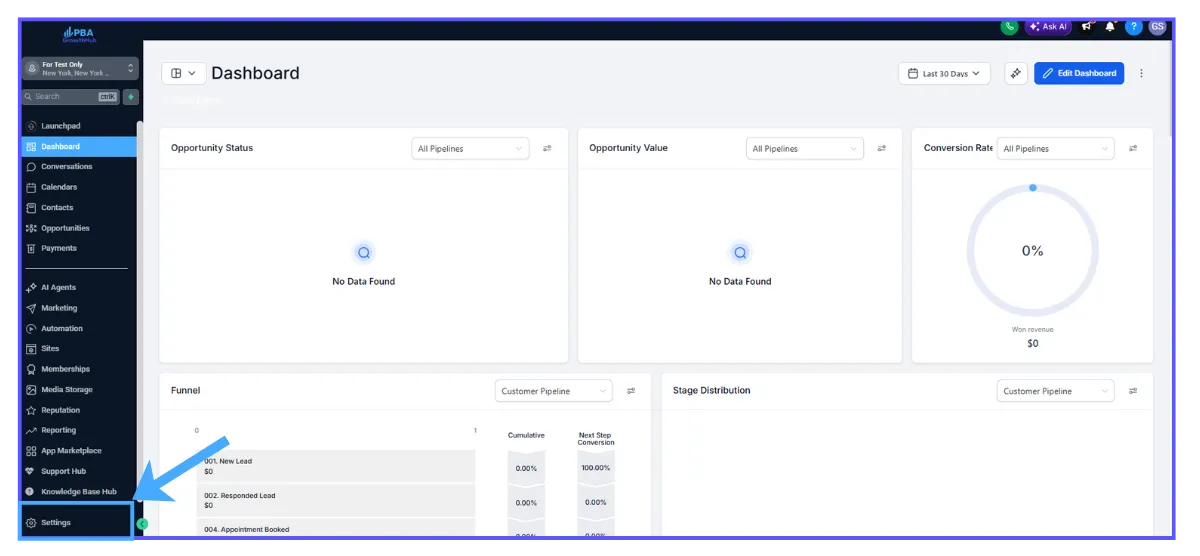
Step 1: Go to Sub-Account Settings
Navigate to Settings located in the bottom-left corner of your dashboard
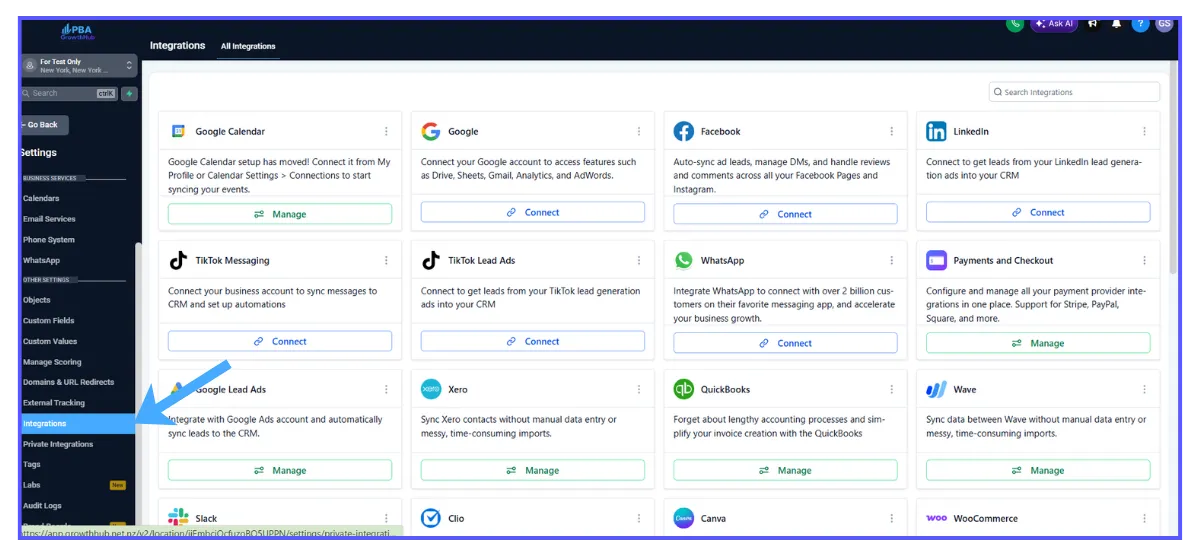
Step 2: Open Integrations
Inside Settings, scroll down the left-hand menu and click Integrations
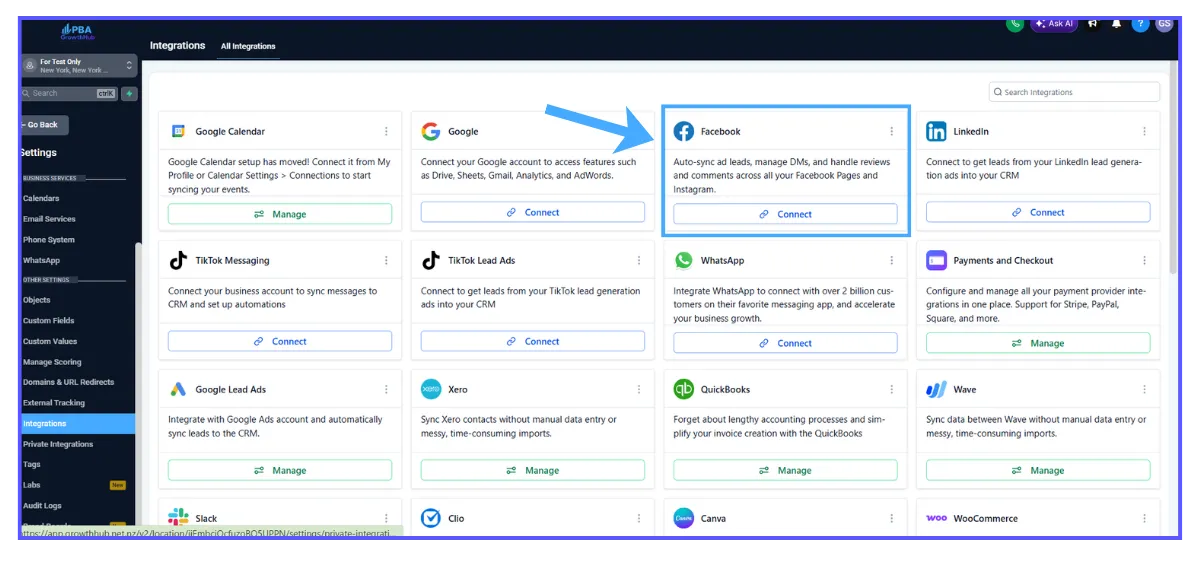
Step 3: Click the Facebook–Instagram Card
Locate the Facebook–Instagram card in the Integrations section and click Connect
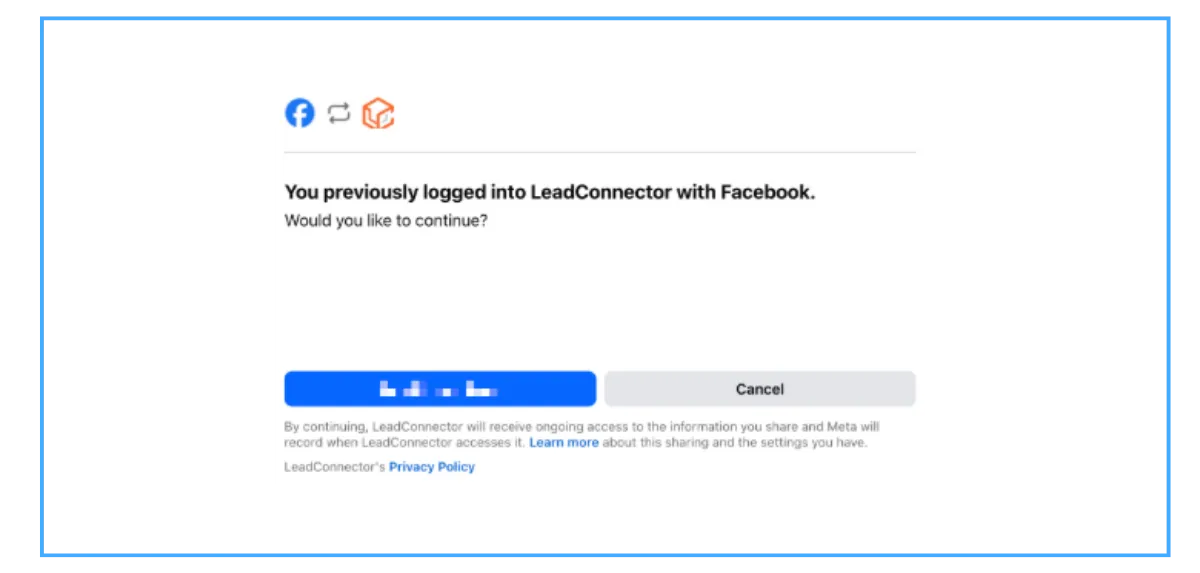
Step 4: Complete Facebook Login and Permissions
A pop-up window will appear prompting you to log into your Facebook account.
Make sure to:
Log into the correct Facebook account
Approve all required permissions (especially access to leads and page data)
Select the correct Facebook Page to connect
Note: You must have Admin access to both the Facebook Page and its connected Business Manager.
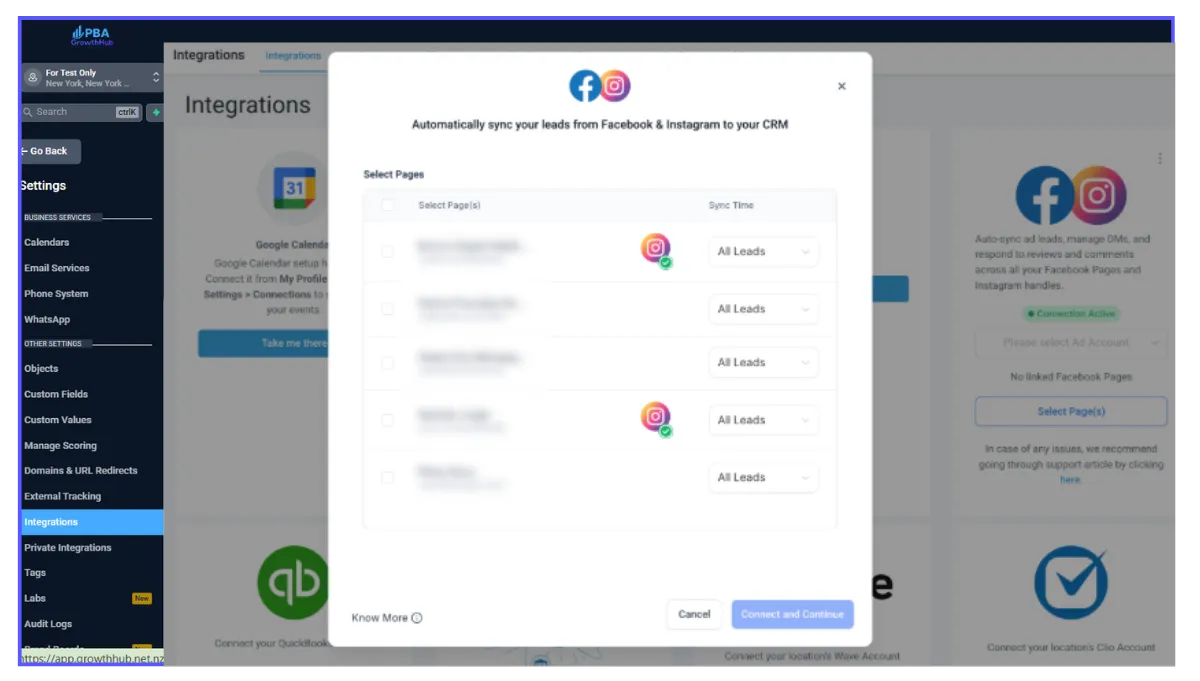
Step 5: Choose Page and Sync Options
After logging in, select:
The Facebook Page you want to integrate
Your preferred sync option:
All Leads
Imports all past leads and future leads
New Leads Only
Imports only leads collected after integration
Step 6: Confirm Integration
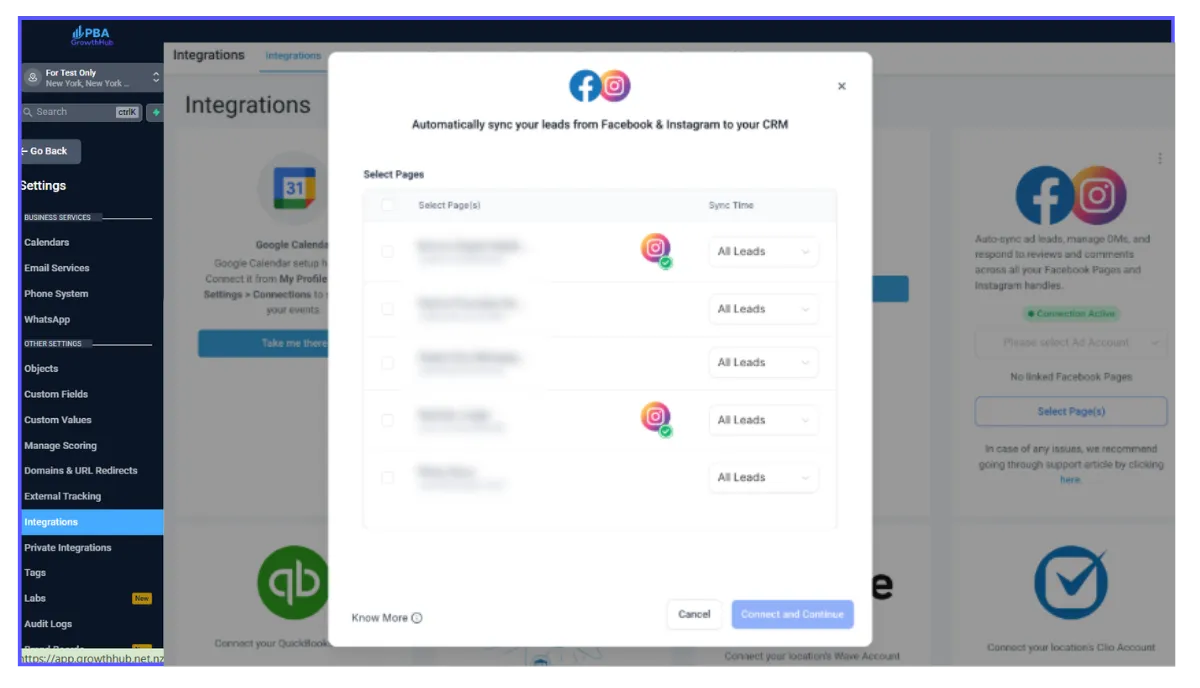
Click Connect and Continue to finalize the setup.
You will see a confirmation message in the upper-right corner indicating:
“Integration successful”
Frequently Asked Questions
Q: What permissions are required to connect a Facebook page?
You must be an Admin of both the Facebook Page and its Business Manager.
If your page is not visible, double-check your permissions.
Q: Can I connect more than one Facebook page?
Yes, GrowthHub allows you to connect multiple Facebook pages to a single account.
Q: What happens if my token expires?
You will receive a reconnection prompt. Simply reconnect your Facebook account to restore the integration.
Q: Does this include Instagram leads?
Yes, as long as your Instagram Business account is connected to your Facebook Page.
What is Instagram Post Sync in Social Planner?
Instagram Post Sync is a feature inside GrowthHub’s Social Planner that automatically imports your existing Instagram posts into your account. It allows you to view, manage, and analyze both past and future content from a single platform.
By syncing recent posts and updating engagement data regularly, it keeps your reporting accurate while reducing the need for manual content recreation.

Key Benefits of Instagram Post Sync
Centralized Content Management
View past and scheduled posts in one unified calendar.Improved Reporting Accuracy
Access up-to-date engagement metrics without manual tracking.Time Savings
Eliminate the need to recreate Instagram posts manually.Better Performance Visibility
Analyze how your content performs over time.Streamlined Workflow
Manage everything from a single dashboard without switching platforms.
Instagram Post Sync Settings and Behavior
Automatically syncing your Instagram content ensures your recent posts are available inside Social Planner without any manual intervention. This keeps your content library complete and up to date.
Syncs posts from the last 30 days automatically
Supports images, videos, carousels, and reels
Imports content directly into your Social Planner calendar
Insights are not real-time and refresh every 24 hours
Due to Instagram API limitations:
Location tags, collaborator details, and mentions may not be available
Deleted posts on Instagram will still appear in Social Planner (sync is one-way)
Supports Instagram Professional accounts connected via Facebook Login or Instagram Login
How To Enable Instagram Post Sync
Proper setup ensures your Instagram posts sync correctly and your analytics remain accurate. Follow these steps to establish a seamless connection.
Method 1: Enable Post Sync While Connecting a Social Account
You can enable Post Sync directly while connecting your Instagram account.
Go to Marketing > Social Planner
Click + Socials
In the Connect Socials popup, enable the toggle: Sync Posts Automatically
Click Connect Instagram and complete the connection
Once enabled, Social Planner will begin syncing your Instagram posts automatically.
Method 2: Enable Post Sync from Social Planner Settings
If your Instagram account is already connected, you can enable Post Sync anytime.
Navigate to Marketing > Social Planner
Click Settings
Go to Social Accounts > Instagram
Enable the Sync Posts toggle for your account
The system will start syncing posts in the background.
After Enabling Sync
Open Planner to review synced posts
Open Statistics to review synced performance data
If you see a disconnect or expired-access message, follow the reconnect prompt to resume syncing
Frequently Asked Questions
Q: How far back does Instagram Post Sync import posts?
The system automatically syncs posts from the last 30 days.
Q: Are engagement metrics updated in real time?
No, metrics such as likes and comments refresh every 24 hours.
Q: Why are some details like tags or collaborators missing?
Due to Instagram API limitations, some data such as location tags, mentions, and collaborator details may not be available.
Q: What happens if I delete a post on Instagram?
Deleted posts will still remain visible in Social Planner because syncing is one-way.
Q: Do I need a specific type of Instagram account?
Yes, only Instagram Professional accounts (Business or Creator) are supported.
Q: Where can I see the synced posts?
Synced posts appear in your Social Planner calendar alongside scheduled content.
Q: What should I do if my posts are not syncing?
Check your account connection and reconnect Instagram if prompted.