
Welcome to GrowhtHub Knowledge Base Hub
Welcome to GrowhtHub Knowledge Base Hub
How to Update Your Account Wallet or Payment Method
On your GrowthHub account, you'll need to add or update a valid payment method so usage-based services (such as Email, Phone, AI, and other billable services) can continue without interruption.
Update the Account Payment Method
Step 1: Open the Account
Go to settings click BillingAdd a new debit or credit card
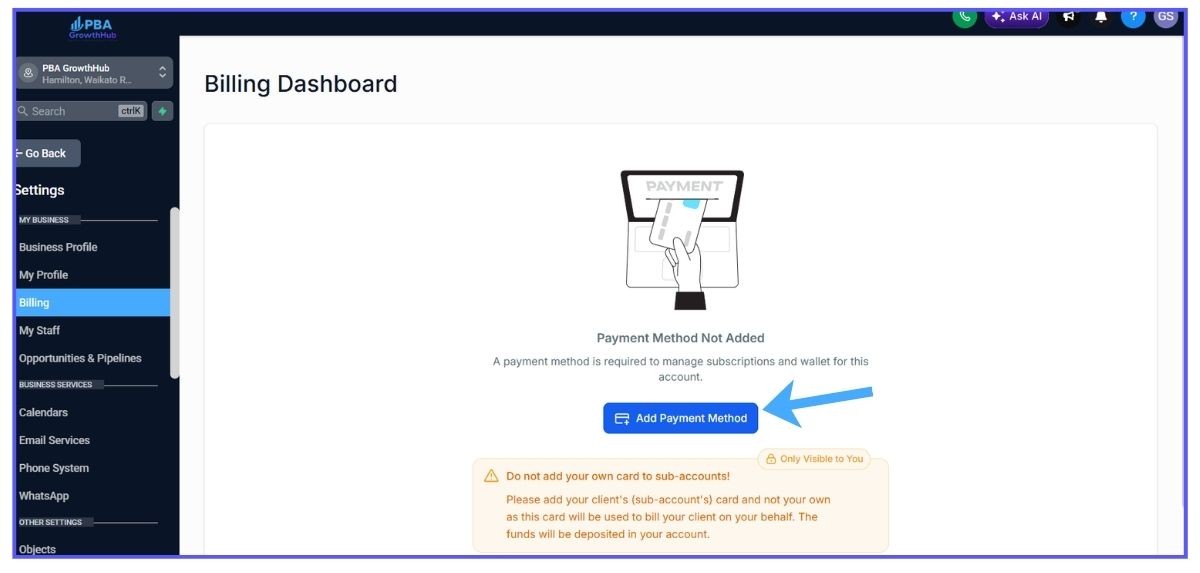
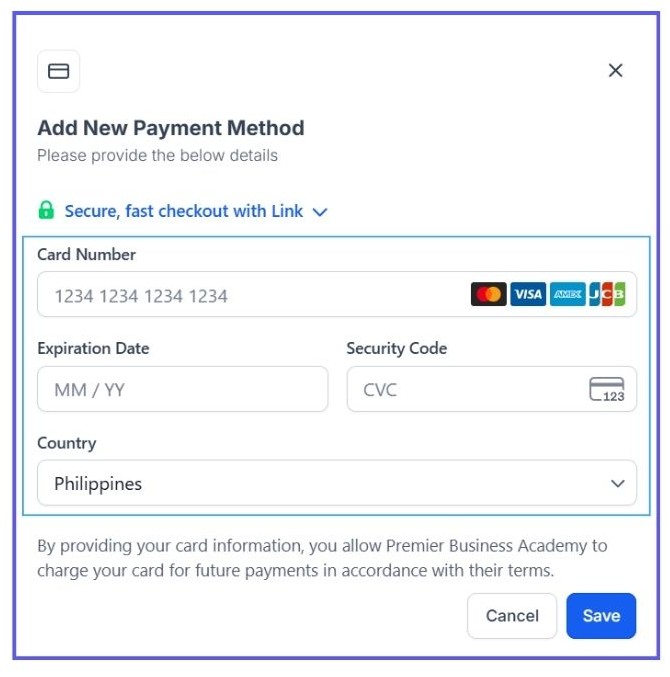
Once a valid payment method has been added, the account wallet can automatically reload whenever the balance reaches its configured threshold.
How the Wallet Works
Your Account Wallet is preloaded with credits.
As your account uses services like:
Email
Phone
AI Features
Premium Actions
Other usage-based services
credits are deducted from the wallet.
When the wallet reaches the minimum balance you've configured, your saved payment method is automatically charged to reload the wallet.
Execution Logs & Enrollment History
Track how contacts move through a workflow, spot errors the moment they happen, and fix them without digging through pages of data.
This article covers the improvements made to Execution Logs and Enrollment History in GrowthHub Workflows. Together these two tabs let you follow a contact's progression, identify errors quickly, and resolve issues efficiently, so your automations keep running cleanly and you always know why something happened.

What is Execution Logs & Enrollment History?
Execution Logs and Enrollment History give you visibility into contact movement through a workflow and document every action a contact experienced.
Enrollment History answers "who is in this workflow, and where are they?" It lists every contact enrolled, their current status, when they entered, and when they are due to move next.
Execution Logs answers "what actually ran?" It lists every individual action execution, whether it succeeded or failed, and exactly when it fired.
Use them together to track progress, identify errors, and confirm smooth operation.
Where to find Execution Logs & Enrollment History
Log in to your GrowthHub account.
Click the Automation tab.
Click Workflows.
Create a new workflow, or open an existing one.
Click the Execution Logs option (or Enrollment History, depending on what you need).

Automation › Workflows, then open the workflow you want to inspect.
Inside the workflow, Enrollment History and Execution Logs sit alongside Builder and Settings.
Quick navigation
Option A (fastest): Conversations → message details → Workflow → Execution Details. Context is preloaded for you.
Option B: Workflows → open workflow → Execution Logs → View Details.
Open a specific execution from message details
Use message details to jump straight to the exact workflow execution tied to a conversation. This removes the manual log searching entirely - handy when a client asks "why did my lead get this text?"
Go to Conversations.
Open the conversation and select the impacted message.
Open message details.
Under Workflow, click the workflow link.
GrowthHub opens Execution Logs and loads Execution Details with the contact and execution context already selected.

The Workflow field in message details is a deep link to the exact execution.

You land on Execution Details with the contact and execution already selected.
Execution Logs - UI/UX changes
"View Details" hyperlink
Previously represented by an icon, View Details is now a plain hyperlink. It is far easier to spot and click when you are scanning for the execution details of a specific action.
View Details is now a labelled link instead of an icon.
Improved error visibility
When an action hits an error, the Status field and the View Details link are both highlighted. You can spot the failed row immediately instead of sifting through everything else on the page.
Failed executions stand out at a glance.
Highlighting opened rows
When you open the details for a specific row, that row stays highlighted. You always have a clear visual reference for what you are currently looking at, even after scrolling the table.
The open row stays highlighted while the details panel is showing.
Action column overhaul
Previously the Action column showed only the action type, which got confusing fast when a workflow contained several actions of the same type.
It now shows the Action Name you assigned in the builder.
Hover over the Action Name to reveal the underlying action type for context.
Name your actions clearly in the builder and this column becomes self-explanatory.
Enhanced sorting in filters
Inside the filter dropdowns, actions that belong to this workflow appear first, followed by other actions in a separate section. Filtering is much more intuitive when you are not scrolling past irrelevant options.
Workflow actions are grouped first, everything else follows.
New workflow statuses
Enrollment History statuses now spell out exactly why a contact left or finished a workflow:
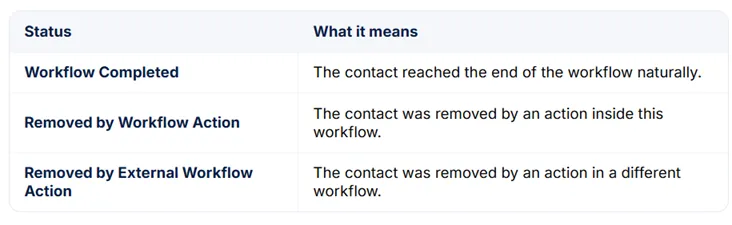
No more guessing why a contact dropped out.
Pagination
Both Enrollment History and Execution Logs support pagination. Choose 10, 25, or 50 rows per page - a big performance win on high-volume workflows.
Rows per page: 10, 25, or 50.
Contact merges in Execution Logs
When contacts merge, Execution Logs include a Contact Merge entry showing how any in-progress workflow runs were handled.
Example: a live chat "Guest" enters a follow-up workflow. Later that guest merges into an existing contact. The workflow continues under the master contact without losing any steps.
If a snapshot refresh removes steps in a snapshot-linked workflow, affected contacts may be removed automatically so they do not get stuck mid-run. Execution Logs show a Removed by - Snapshot Refresh entry, and you can view the full detail in the side panel.
Merges and snapshot refresh removals are both logged explicitly.
Highlight Contact Path
Click the Highlight Contact Path icon in the Enrollment History or Execution History tab.
The builder opens with that contact's path highlighted on the workflow canvas.
The Highlight Contact Path icon sits in the row actions.
Highlight Contact Path gives you real debugging context on the canvas:
Error visibility: nodes that threw errors are highlighted on the canvas.
Skipped nodes: see which nodes the contact bypassed.
Entry and exit status: visual indicators show where the contact entered and exited.
In-progress tracking: see where an active contact currently sits in the workflow.
The path taken, the node that errored, and the nodes that were skipped.
For active contacts you can see exactly where they are sitting and when they resume.
Go To Action button
When you are reviewing Execution History details and decide a change is needed:
Click the Go To Action button.
You land directly in the builder with the Action Sidebar already open.
Make the change on the spot - no hunting through the canvas for the right node.