
Welcome to GrowhtHub Knowledge Base Hub
Welcome to GrowhtHub Knowledge Base Hub
Calendar Schedules and Availabilities
What are Schedules?
Schedules are shared availability templates that combine weekly working hours, date-specific overrides, and staff-level time-zone settings into a single, reusable object. Instead of editing each calendar individually, you attach a schedule to any calendar that should follow those hours, enabling truly centralized availability management.
This feature is currently available via Labs. Go to Settings → Account and enable Calendars - Schedules.
NOTE: Schedules and Custom Schedules are different. A Schedule is centrally managed. A Custom Schedule is a set of edits to a Schedule in one Calendar and it is managed only in that Calendar.
Key Benefits of Schedules
Manage every user’s hours from one place—no more calendar-by-calendar edits.
Re-use the same schedule across multiple calendars or services.
Give every new user a built-in default schedule for immediate booking readiness.
Maintain flexibility: create one-off custom schedules when an individual calendar needs special hours.
Automatic migration of legacy availability means zero downtime or re-work.
Each User can have multiple Schedules.
Each Calendar can have one Schedule per User at a time.
Accessing Schedules
To access all Schedules, navigate to:
Calendars → Calendar Settings → Availability
(or Settings → Calendars → Availability)
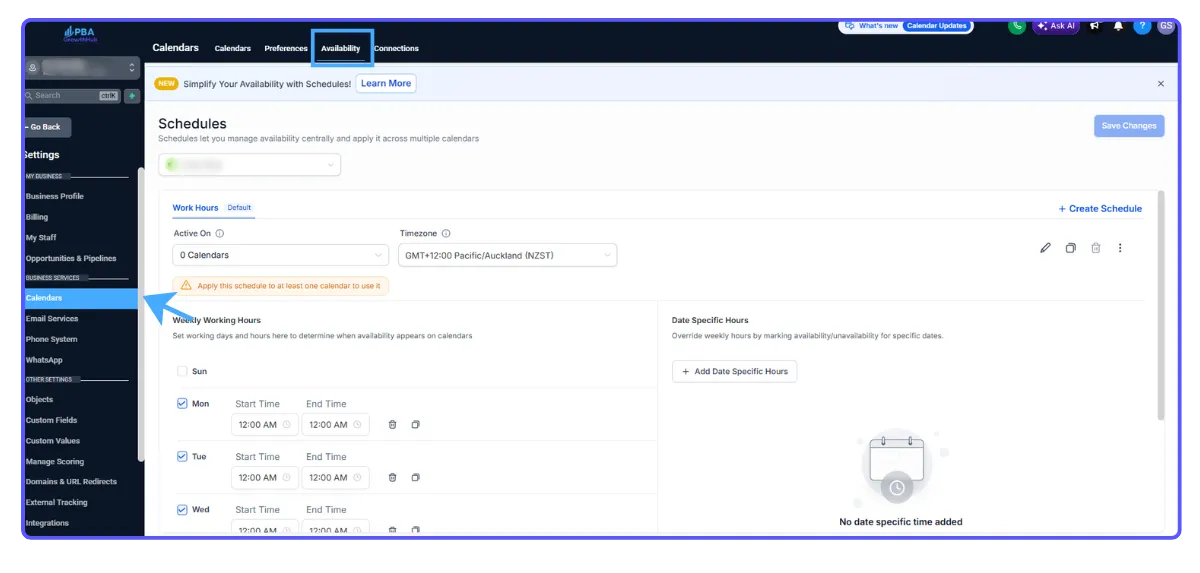
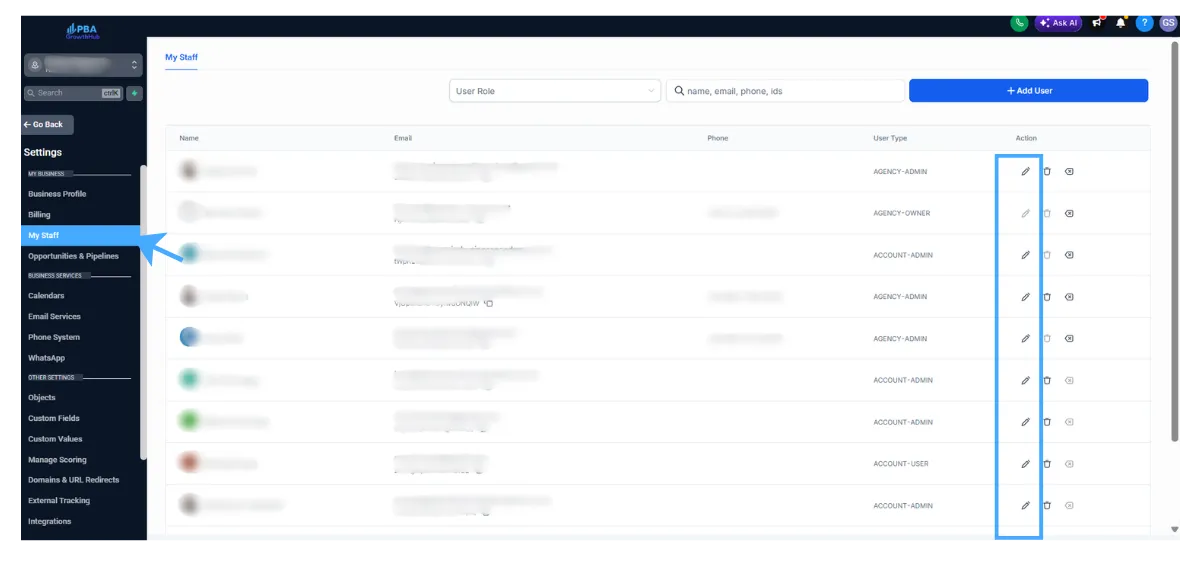
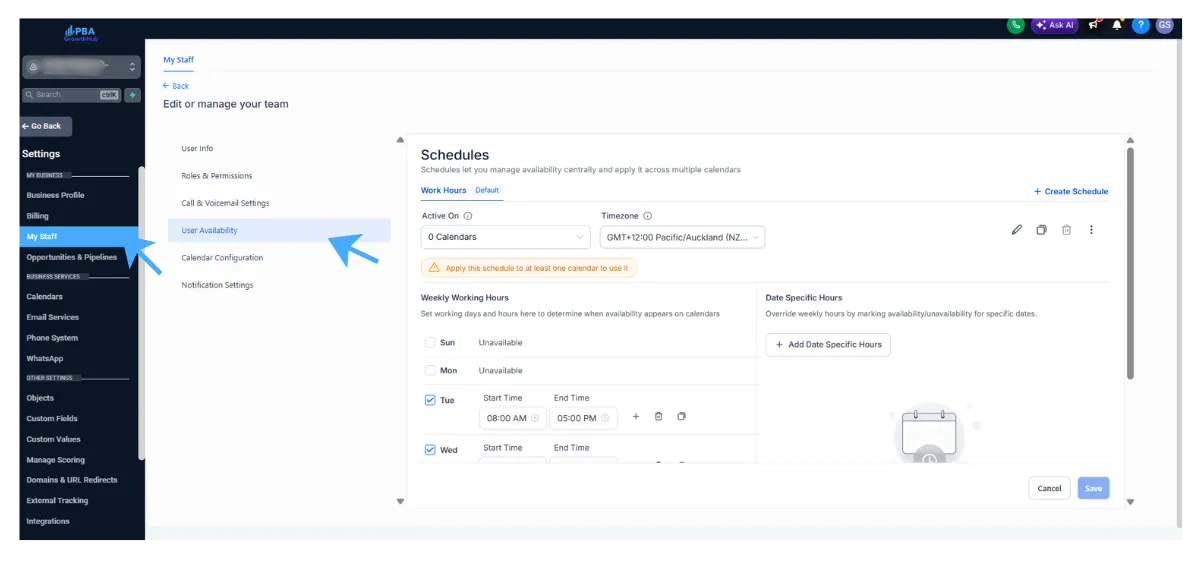
An admin can manage any individual’s schedule by navigating to:
Settings → My Staff → Click the edit pencil icon next to a specific user → User Availability
Create New Schedule
Click Create Schedule → Enter its Name → Click on Create
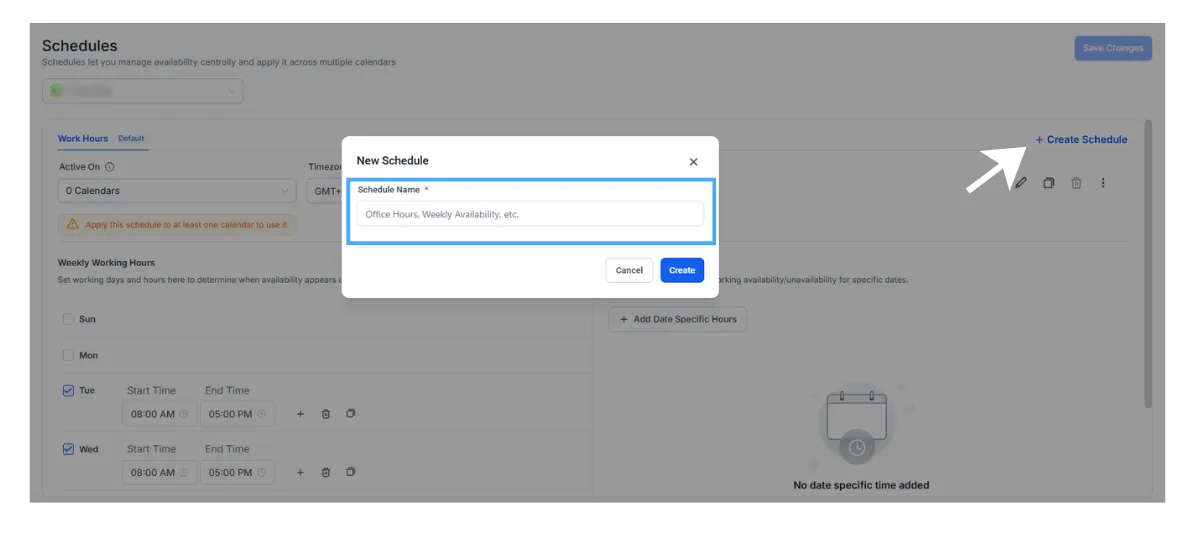
Configuring a schedule:
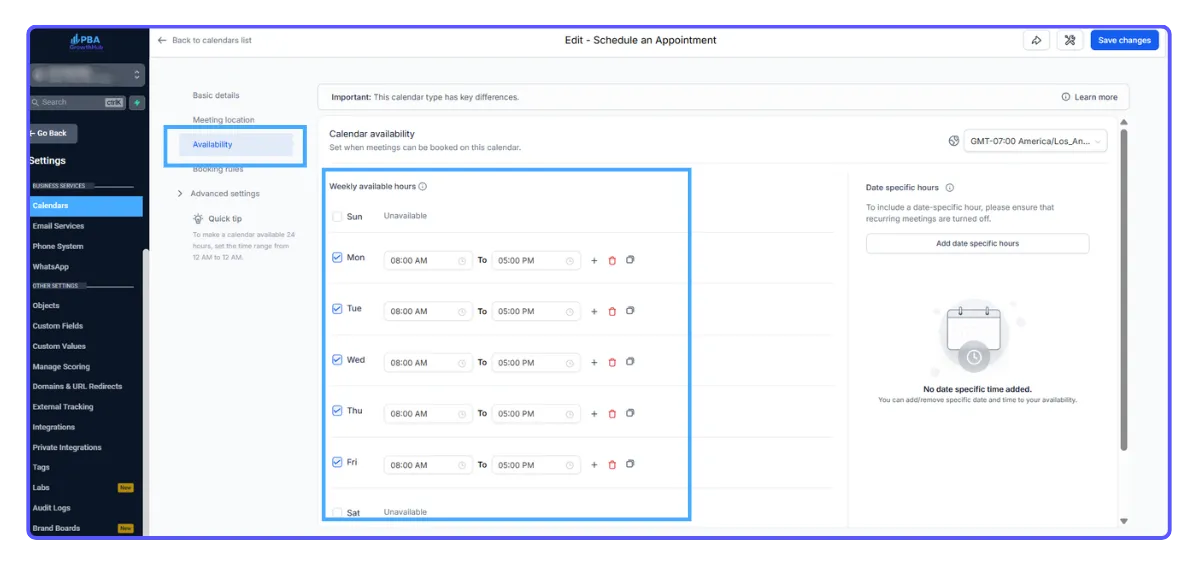
Weekly working hours — Set working days and hours to determine when availability appears on the calendars
Time Zone — Set the timezone in which the schedule’s availability is stored and evaluated
Date-Specific Overrides — Override weekly working hours by marking availability/unavailability for specific dates
Use the Active On dropdown to select which calendars this schedule should apply to for the chosen staff member.
Save the schedule.
You can create multiple Schedules (ex: Consultations, Demos, On-Site, etc.) and assign them to different Calendars.
Edit Schedule - Calendar Link
You can also manage the schedule for a specific calendar by navigating to:
Calendars → Calendar Settings → Edit Calendar (in Calendars List) → Availability tab
Switch Calendar to use a different Schedule.
Create and use a Custom Schedule for that Calendar.
Any updates made to a Schedule apply to all Calendars linked to it (even if the edit was initiated from a specific Calendar).
Transition for Existing Calendars (Custom Schedules)
To ensure a smooth transition, a Custom Schedule will be created for each of your existing calendars as per your configured availabilities.
These appear only in that calendar’s Availability tab.
You can edit them or replace them with reusable schedules at any time.
Calendar Schedules and Availabilities
What are Schedules?
Schedules are shared availability templates that combine weekly working hours, date-specific overrides, and staff-level time-zone settings into a single, reusable object. Instead of editing each calendar individually, you attach a schedule to any calendar that should follow those hours, enabling truly centralized availability management.
This feature is currently available via Labs. Go to Settings → Account and enable Calendars - Schedules.
NOTE: Schedules and Custom Schedules are different. A Schedule is centrally managed. A Custom Schedule is a set of edits to a Schedule in one Calendar and it is managed only in that Calendar.

Key Benefits of Schedules
Manage every user’s hours from one place—no more calendar-by-calendar edits.
Re-use the same schedule across multiple calendars or services.
Give every new user a built-in default schedule for immediate booking readiness.
Maintain flexibility: create one-off custom schedules when an individual calendar needs special hours.
Automatic migration of legacy availability means zero downtime or re-work.
Each User can have multiple Schedules.
Each Calendar can have one Schedule per User at a time.
Accessing Schedules
To access all Schedules, navigate to:
Calendars → Calendar Settings → Availability
(or Settings → Calendars → Availability)
An admin can manage any individual’s schedule by navigating to:
Settings → My Staff → Click the edit pencil icon next to a specific user → User Availability
Create New Schedule
Click Create Schedule → Enter its Name → Click on Create
Configuring a schedule:
Weekly working hours — Set working days and hours to determine when availability appears on the calendars
Time Zone — Set the timezone in which the schedule’s availability is stored and evaluated
Date-Specific Overrides — Override weekly working hours by marking availability/unavailability for specific dates
Use the Active On dropdown to select which calendars this schedule should apply to for the chosen staff member.
Save the schedule.
You can create multiple Schedules (ex: Consultations, Demos, On-Site, etc.) and assign them to different Calendars.
Edit Schedule - Calendar Link
You can also manage the schedule for a specific calendar by navigating to:
Calendars → Calendar Settings → Edit Calendar (in Calendars List) → Availability tab
Switch Calendar to use a different Schedule.
Create and use a Custom Schedule for that Calendar.
Any updates made to a Schedule apply to all Calendars linked to it (even if the edit was initiated from a specific Calendar).
Transition for Existing Calendars (Custom Schedules)
To ensure a smooth transition, a Custom Schedule will be created for each of your existing calendars as per your configured availabilities.
These appear only in that calendar’s Availability tab.
You can edit them or replace them with reusable schedules at any time.